

STA2HTM user guide
Overview:
First of all, contact Lingyange Semiconductor CAD for a STA2HTM package.
Throughout normal APR flow, there are huge amount of STA reports generated. Enormous text information could overwhelm designers.
There is a solution to this problem. Convert text STA reports into html web pages that could be visualized by web browser. Information is classified and DQIs are extracted. Trend lines are charted over corners, versions, function modes etc. Trend lines could be plotted even over hierarchical blocks. Version comparison could be perfomed easily.
STA2HTM is a tool that just provides this solution. Next, we’ll examine the tool in detail.
The following is function block diagram of STA2HTM package:
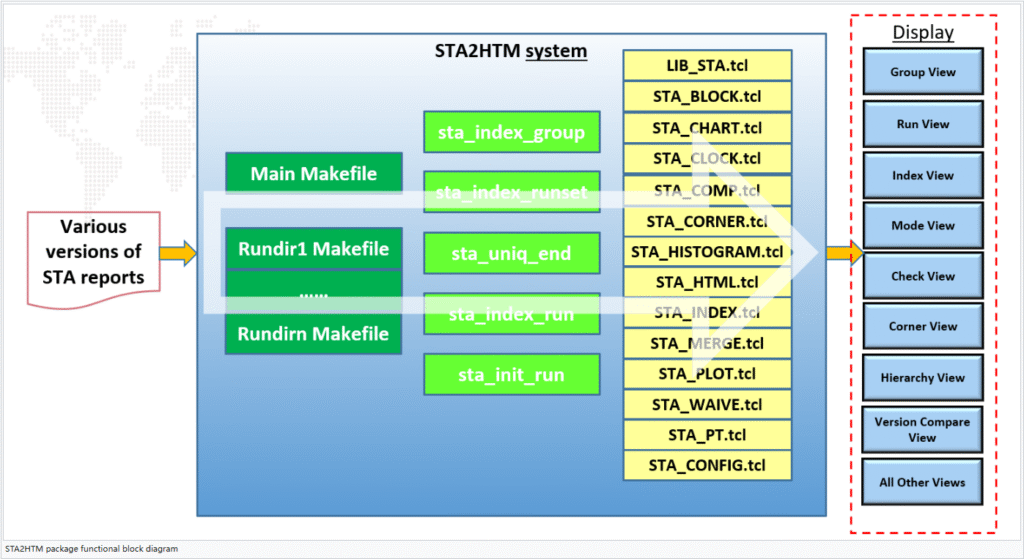
STA2HTM package takes STA reports as input, performs STA text reports to web page conversion, output html pages with various views (-the diagram displays 8 views and hides the rest of views into one button). The convertor is consist of 3 level of programs: 1st level is top Makefile and run directory Makefile, which issue commands selectively from 5 c shell scripts. c shell scripts are 2nd level programs, which in turn source tcl scripts selectively from 14 script set – the 3rd level programs.
Set up procedures to run STA2HTM flow:
STA2HTM package is targeted to STA reports extracted and displayed in linked web pages, on which color tables and trend charts aid strong visual effects. However, to get web page, or to run STA2HTM flow, certain setup procedures must be followed.
In top software directory, it’s directory hierarchy is showed in below picture:
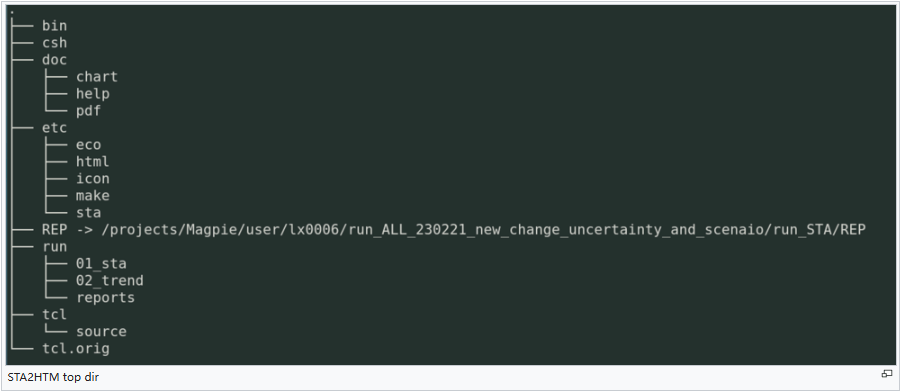
‘bin’ directory contains executable programs to run STA2HTM flow; ‘etc’ directory stores various configuration files; The flow runs under ‘run/01_sta’ directory; ‘tcl’ directory contains all tcl scripts used in flow;
At top directory, there is ‘setup.cshrc’ file which looks like this:
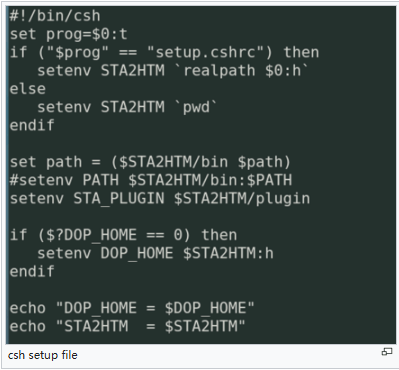
1) First step to run the flow is ‘source setup.cshrc’. This would set up environment to run the flow. Typical output of sourcing this script is shown below:

Variable ‘DOP_HOME’ and ‘STA2HTM’ are set up. $STA2HTM/bin is added to environment PATH. This step is important. Otherwise, make file commands can’t find their proper path. Note: execute ‘setup.cshrc’ by typing the file name won’t work. You must source it instead.
2) Link STA report top directory to STA2HTM top directory. Please refer to ‘REP’ link. Go to ‘run/reports’ directory, make directories and link report like the following:
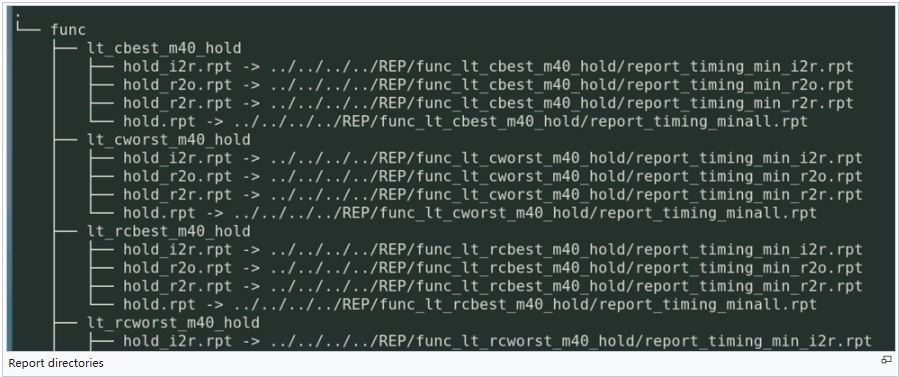
Under ‘reports’, make subdirectory like ‘func’, ‘scan_shift’ etc functional mode; under functional mode subdirectory, make ‘lt_cbest_m40_hold’ etc corner name subdirectory. Under corner name subdirectory, linked all reports properly like the picture showed. We have a script $STAHTM/tcl/link_report.tcl to automatically set up report directory for you. Make a directory for your reports, and link all those ${mode}_${corner_name} directories to this directory. Then execute ../../tcl/link_report.tcl at this directory. All your reports would be linked properly then.
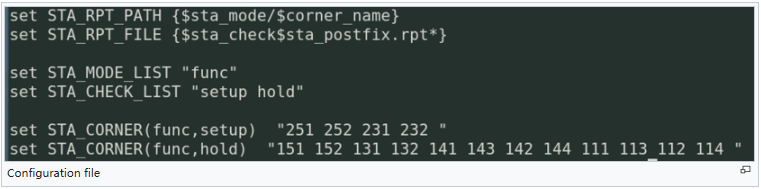
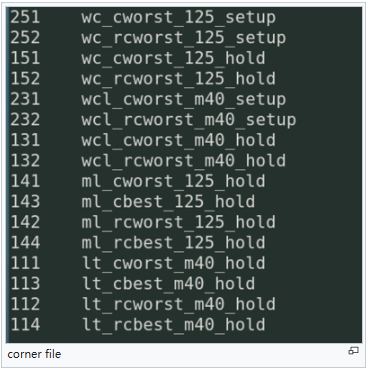
3) Under ‘run/reports’ directory, make ‘.sta’ subdirectory, under which the following configuration files are to be edited:
‘sta2htm.cfg’:
‘sta2htm.corner’:
‘*.waive’:
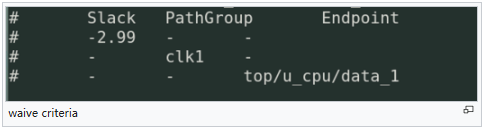
This is waive file extension name. If you’d like to configure waive features for all scenarios, name the file to ‘all.waive’. If you only like to apply waive conditions to certain function mode, name it with function mode. For example, if ‘func’ is the function mode you’d like to apply waive condition, name the file to ‘func.waive’. If you configure both ‘all.waive’ and ‘func.waive’, waive conditions from both files would apply.
The syntax for this file is three columns each line. In the picture above, if we uncomment ‘#’ from each line, we have -2.99 slack waive condition, which would waive all paths whose slack is greater than -2.99. We also have ‘clk1’ pathgroup waive condition, which would waive all ‘clk1’ pathgroup paths. I have ‘top/u_cpu/data_1’ endpoint waive condition, which would waive all paths whose endpoint is ‘top/u_cpu/data_1’. When you specify any of these waive condition, keep other two “-” character, which means don’t care. Of course, you could specify waive conditions in combinations. For example, ‘-2.99 clk1 -‘ means for all paths whose pathgroup is ‘clk1’ and whose slacks are greater than -2.99 would be waived.
‘sta2htm.trend’:
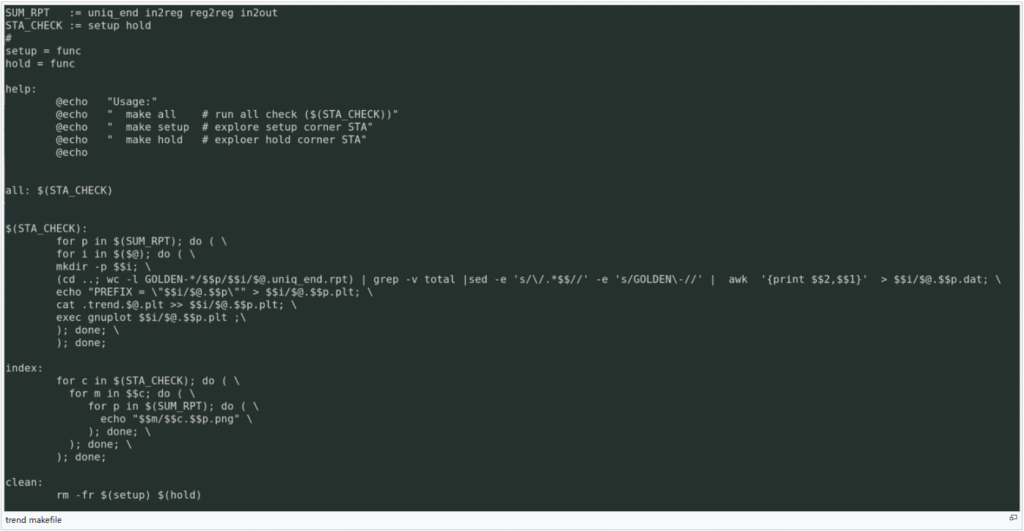
4) Under ‘run/01_sta’ directory:
You need to link all valid report directories for related version, for example, ‘ln -s ../reports .’; Then prepare ‘Makefile.run’ for Makefile. A typical ‘Makefile.run’ is shown below:
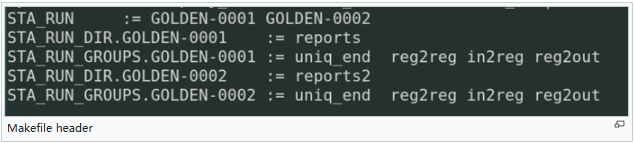
This Makefile header defines STA_RUN, each of which variable names STA2HTM run directory for proper version. In this example, ‘GOLDEN-0001’ directory would store version 1 run data, whose report directory is defined by ‘STA_RUN_DIR.GOLDEN-0001’ variable, and in this case, is ‘reports’. Related groups are ‘uniq_end reg2reg in2reg reg2out’. And version 2 variables are defined similarly. If you have only one version of report, then only one set of variables needed to be defined.
5) ‘sta2htm.run’ file must be configured to run the flow. A typical file would be shown below:
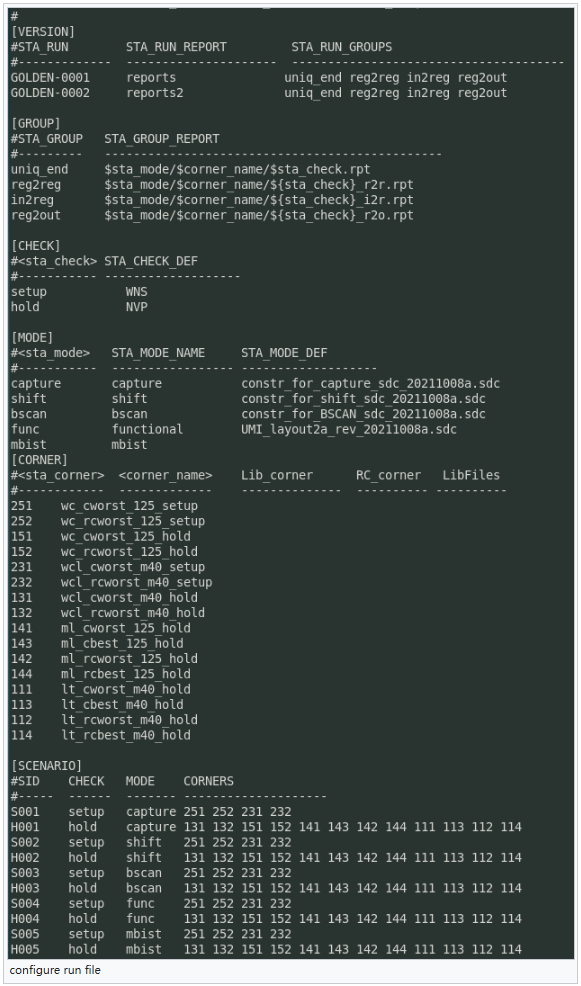
The setup in this file must be consistent with other configuration file under .sta or makefile header. Makefile is not necessary to modify, but it’s important and shown here:
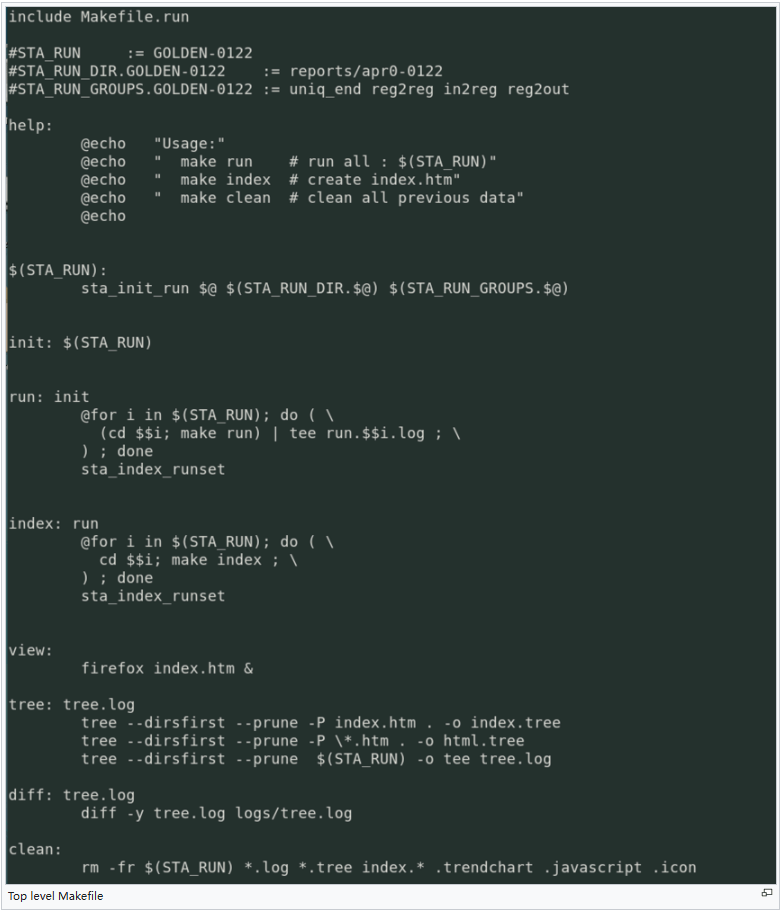
6) ‘make clean’ would clean extracted data in STA_RUN directories. ‘make run’ would extract data from the beginning and then run the flow. Without ‘make clean’, ‘make run’ would re-extract data from reports, it just modify html pages if necessary. The make file would first initialize the flow with proper setups, configuration files and variables; then it changes directory to each of STA_RUN directory, and ‘make run’ Makefile under that directory. A typical Makefile under that directory is shown below:
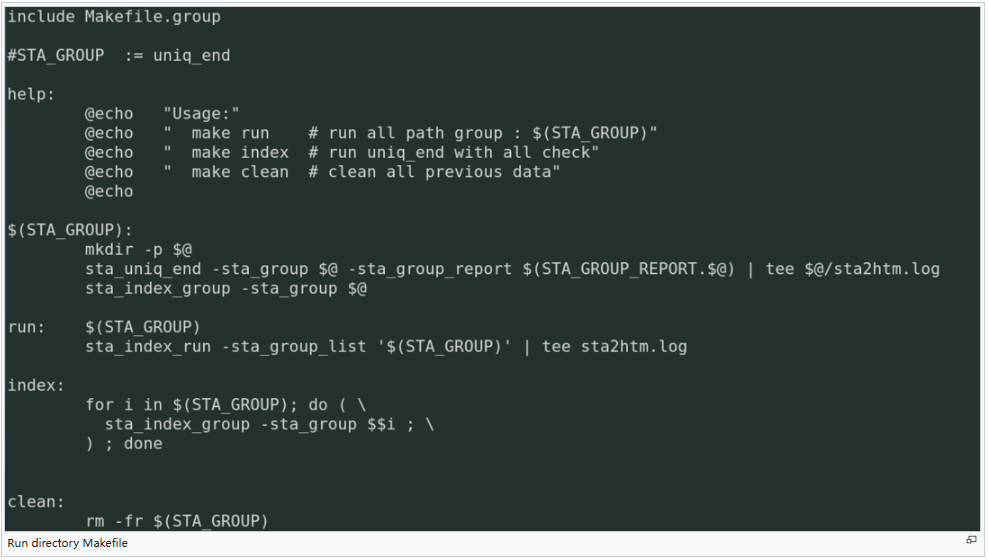
And it’s header is defined in ‘Makefile.group’ which is shown below:
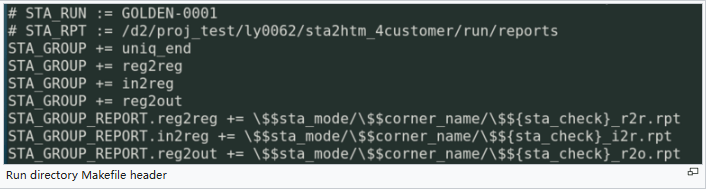
Group related variables are defined inside this file. The Makefile under STA_RUN would extract data from each of STA_GROUP_REPORT*, and create all related web pages with trend charts. Upon completion of the flow, user would have a top web page ‘index.htm’ under ‘run/01_sta’, which would have proper links to all html report tables and figures. All extracted data as well as html pages and figures are stored in STA_RUN directory with related version.
Representative web pages after STA2HTM flow run finishes:
After STA2HTM flow run finishes, an ‘index.htm’ file is generated under run/01_sta directory. Open it by firefox, you’ll see the following page:
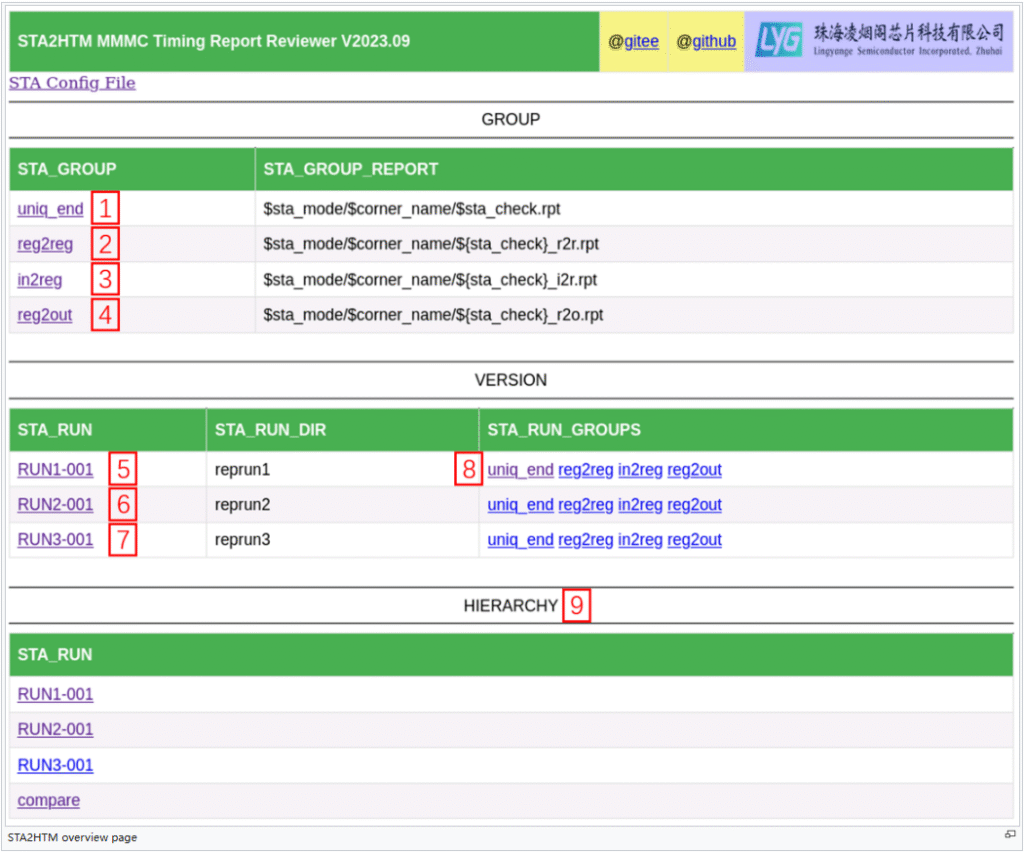
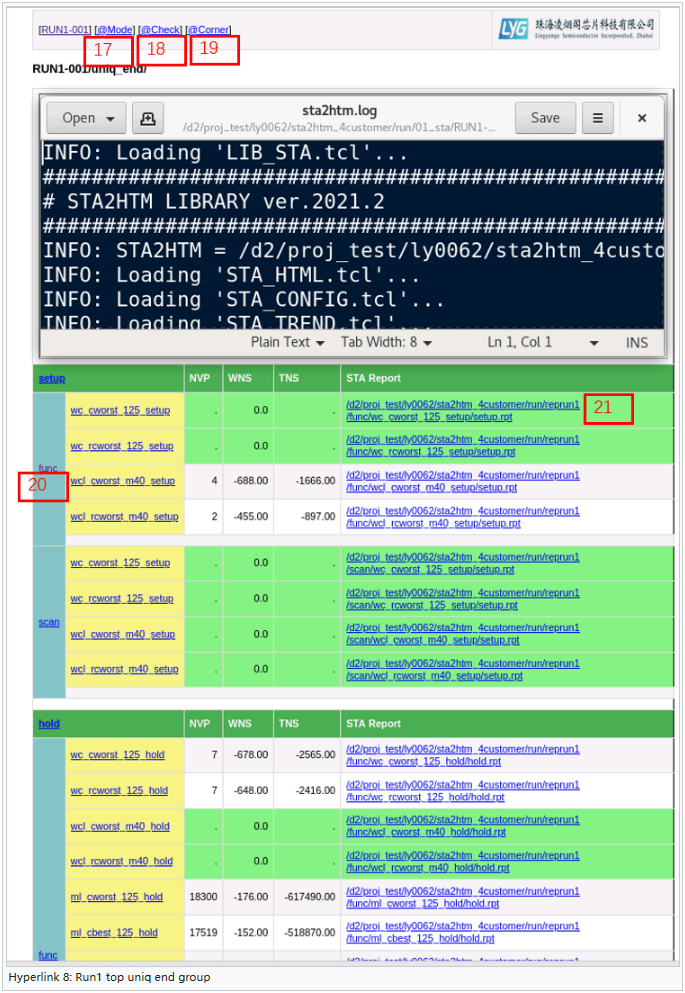
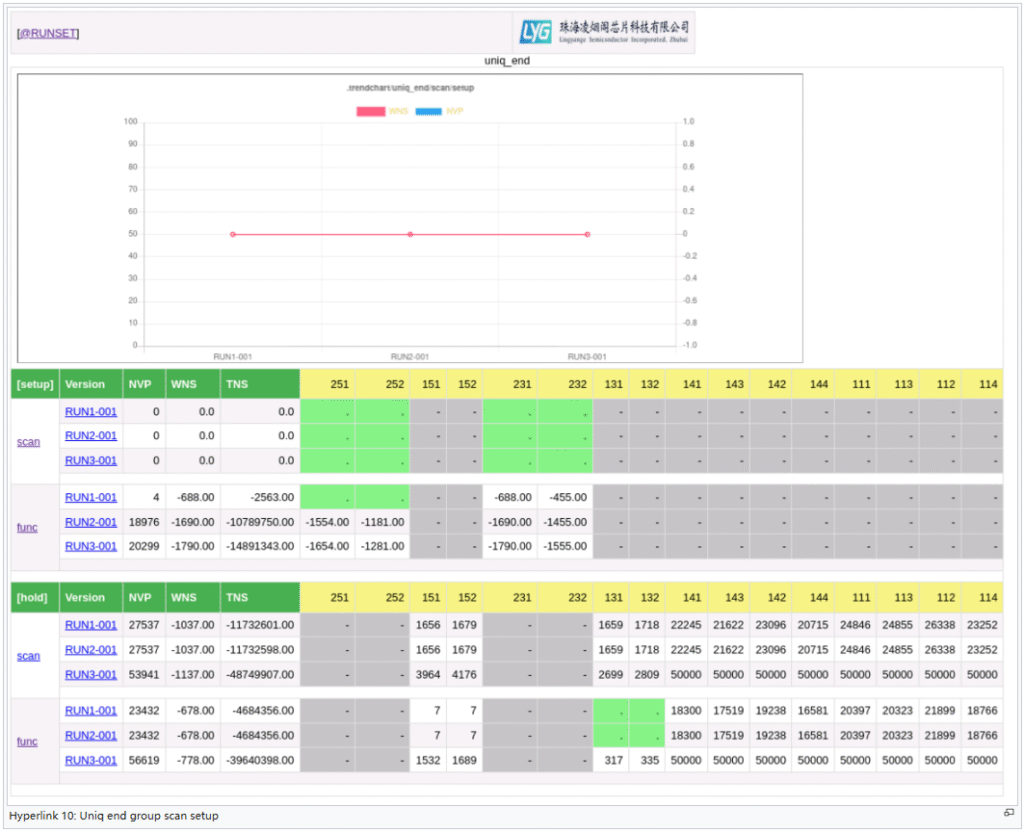
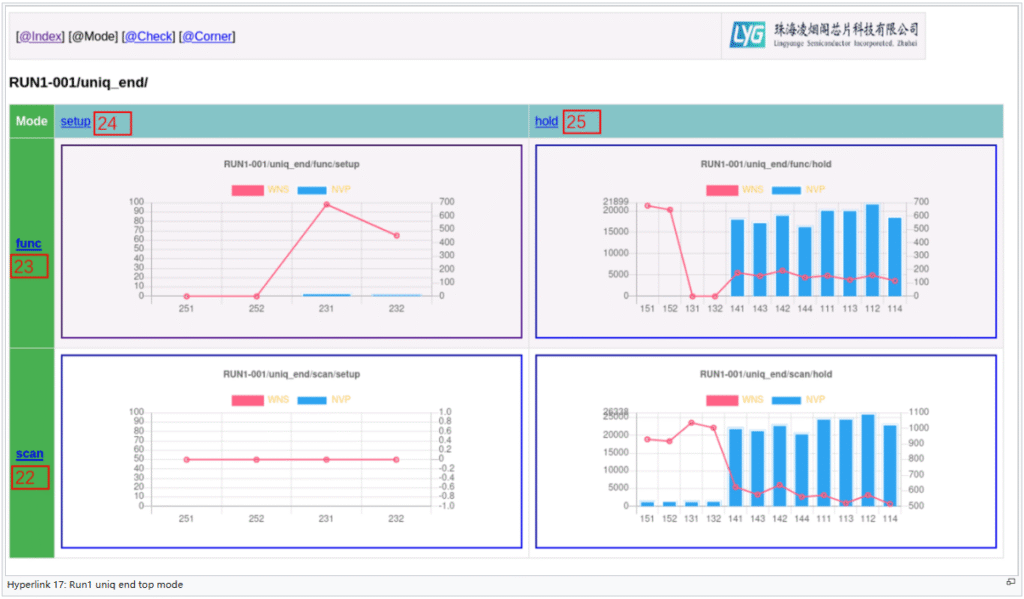
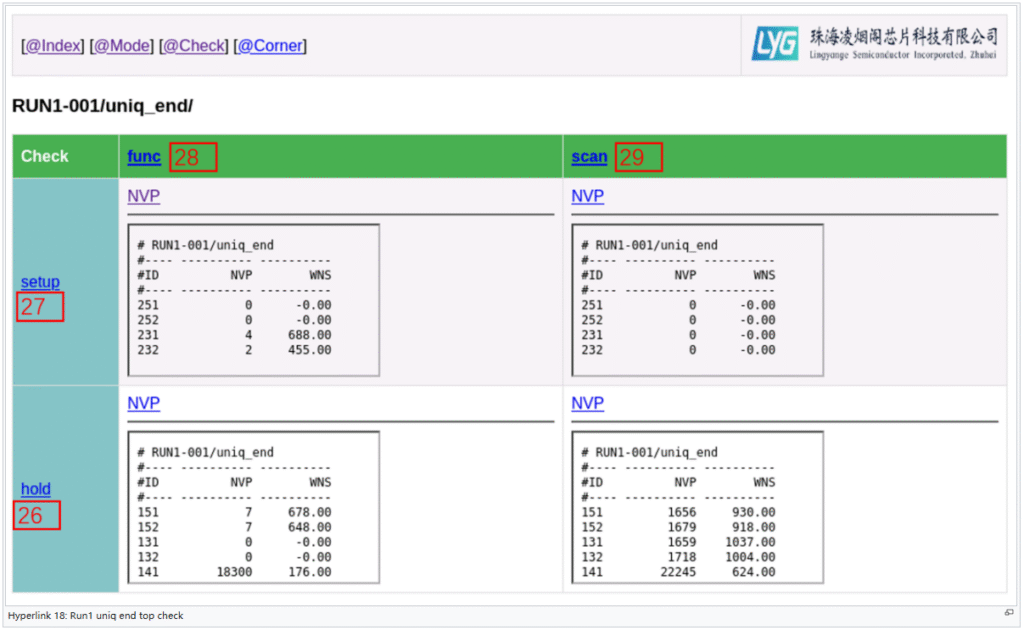
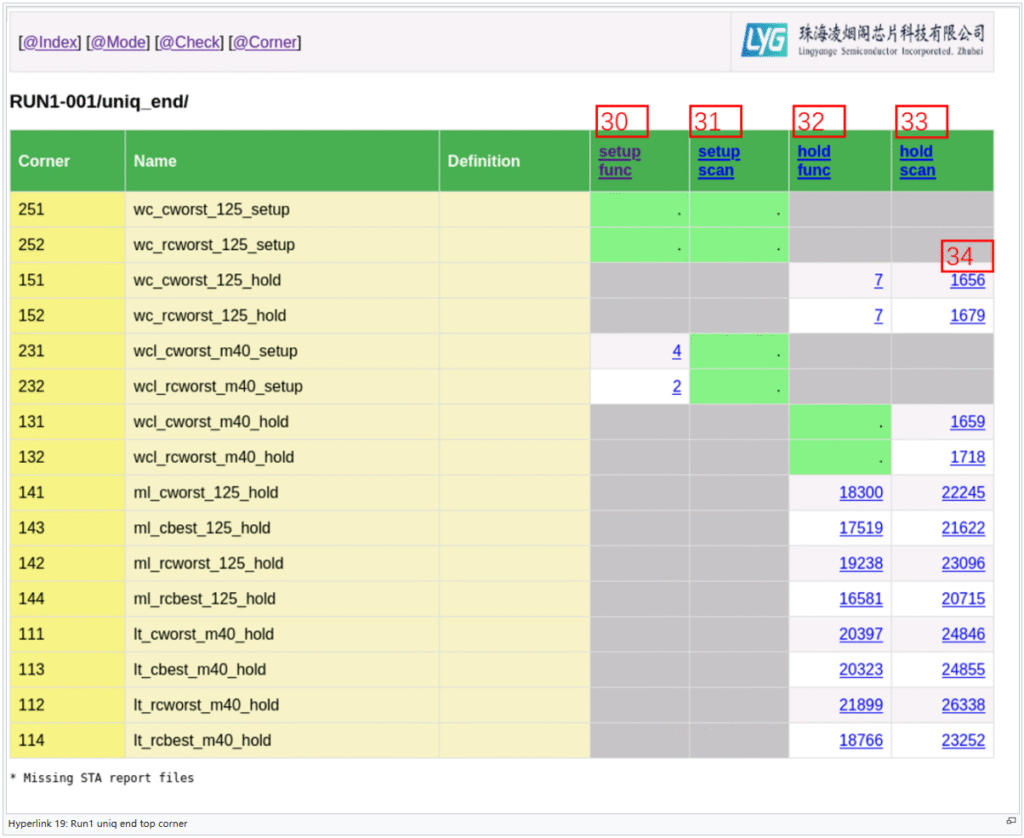
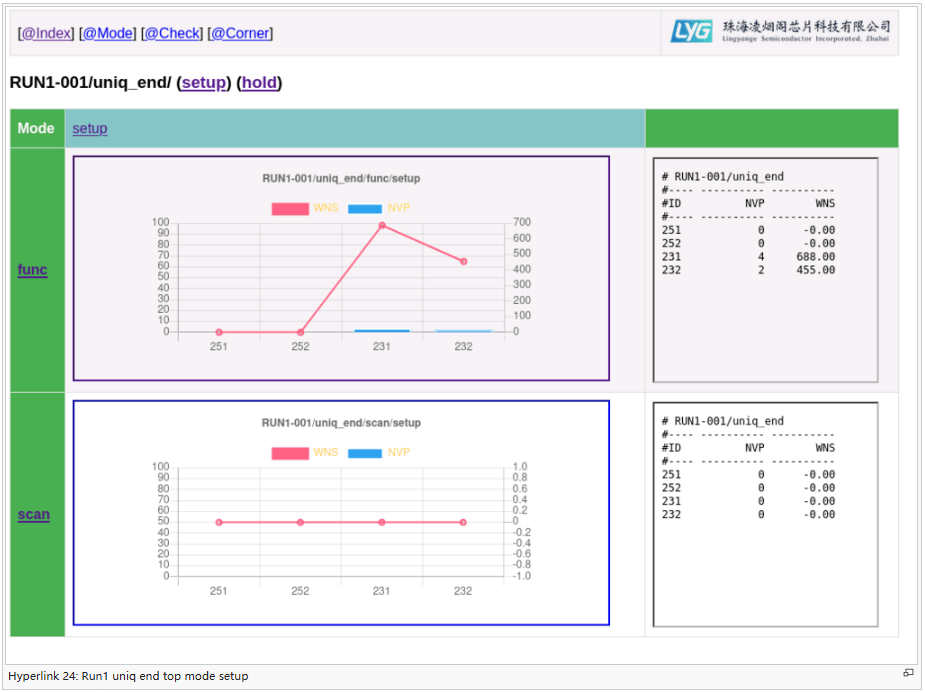
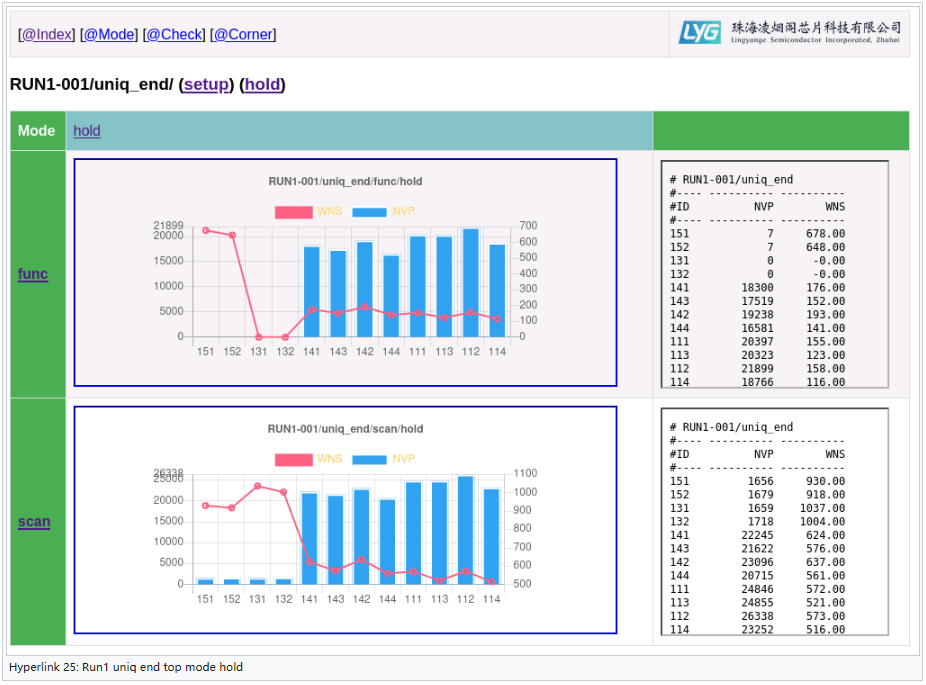
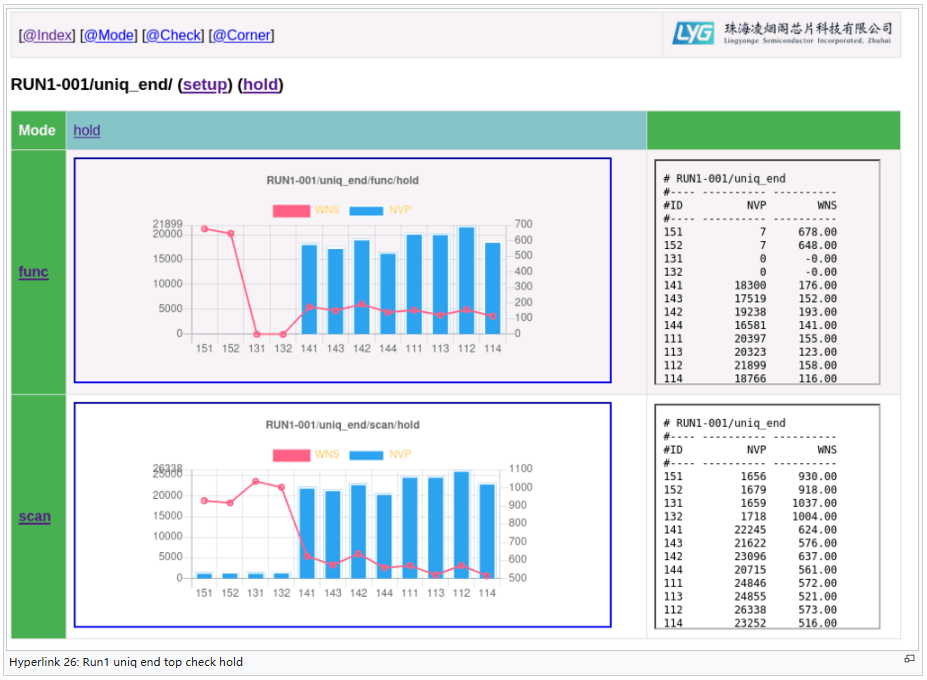
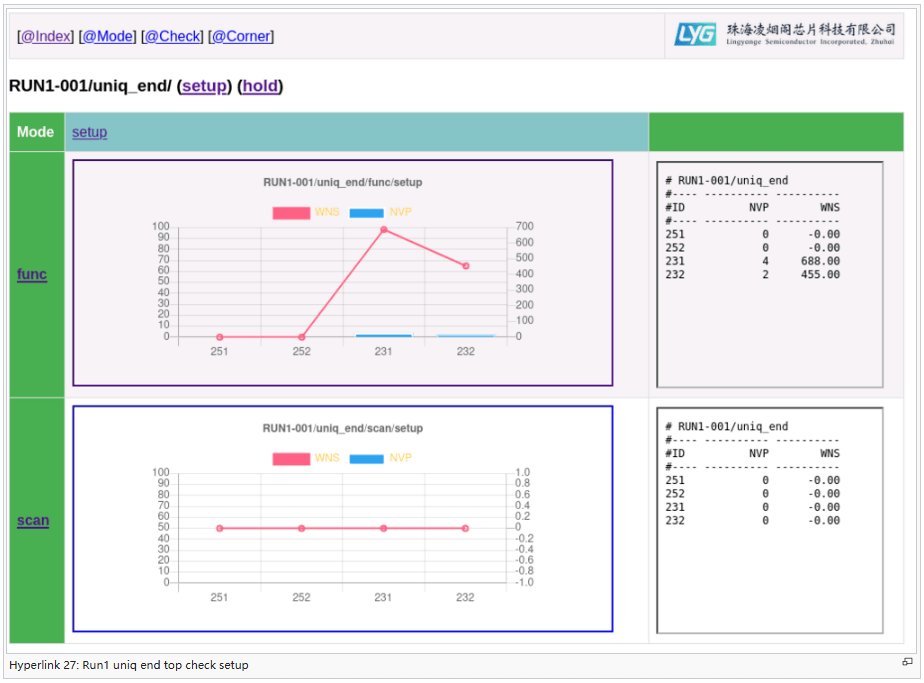
There are top banners and three sections on this page. The most important and representative hyperlinks are indexed by numbers. Let’s look at them one by one:
| group |
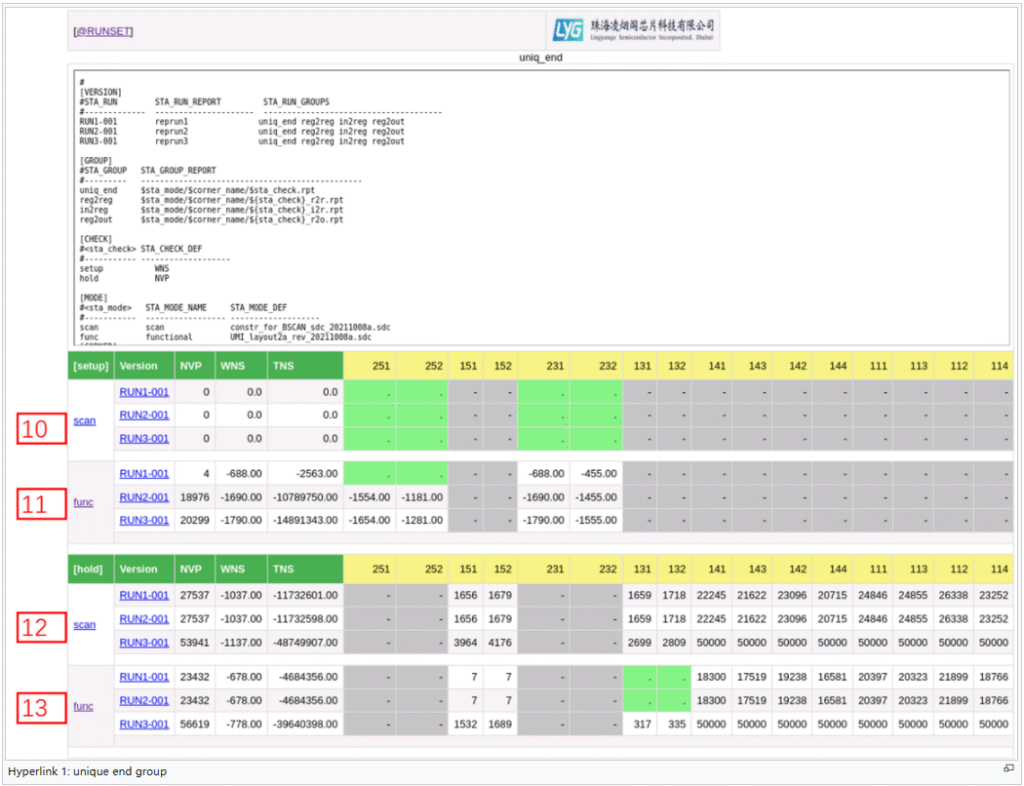
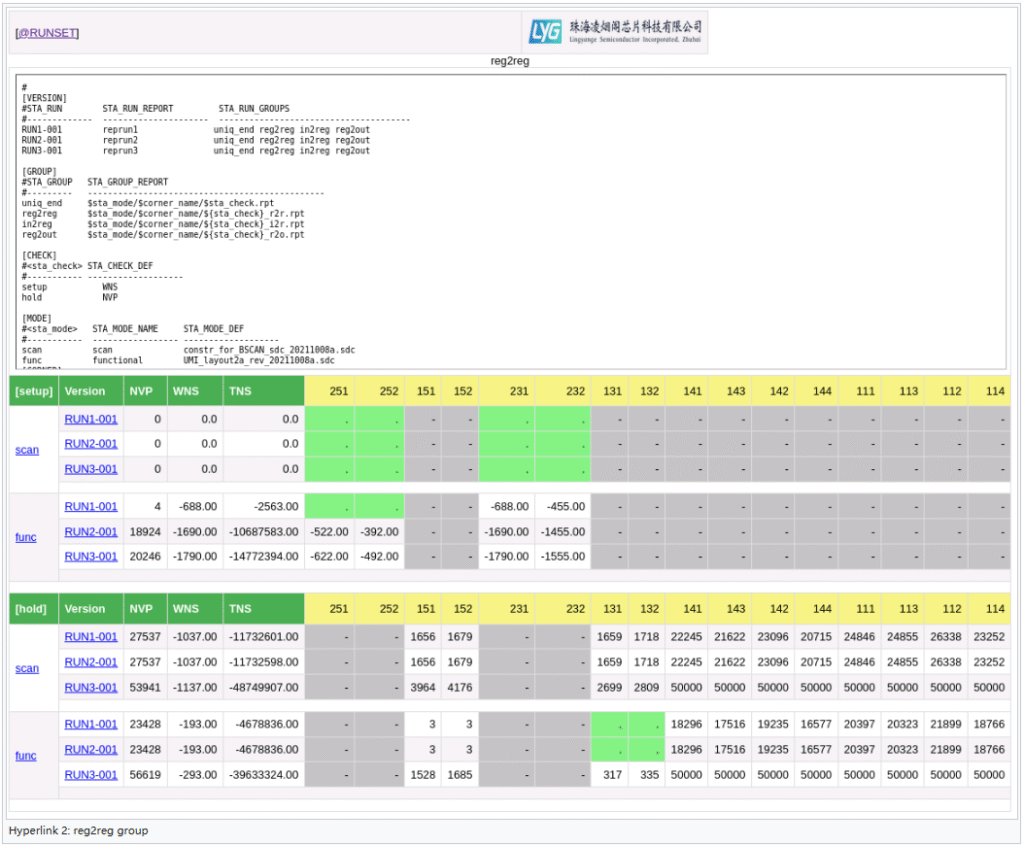
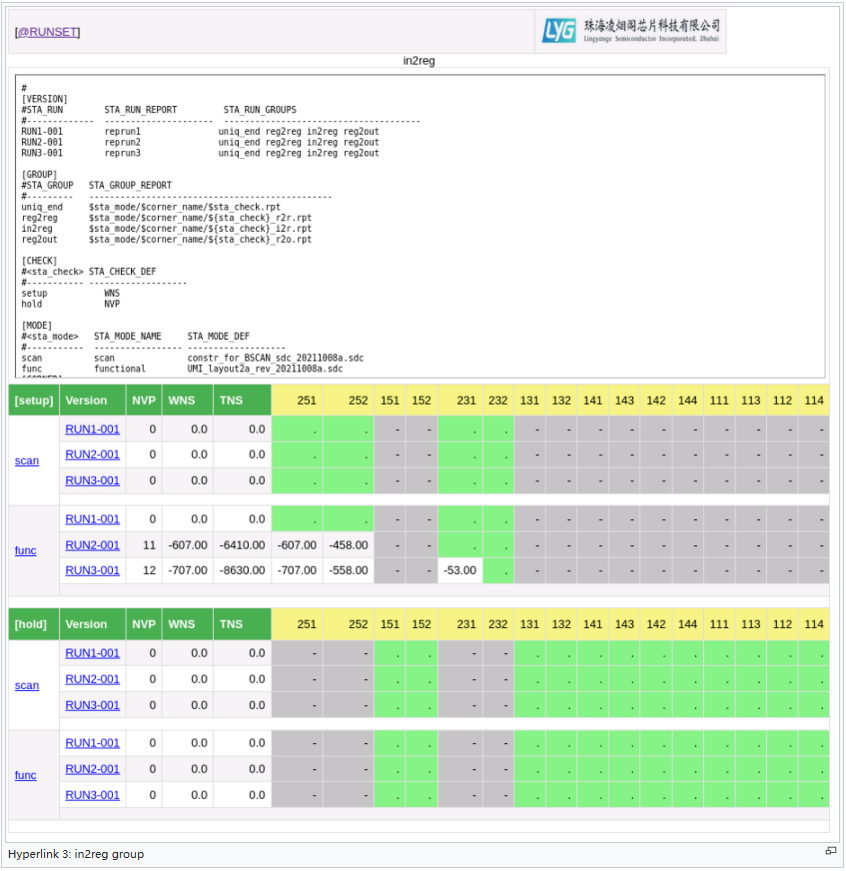
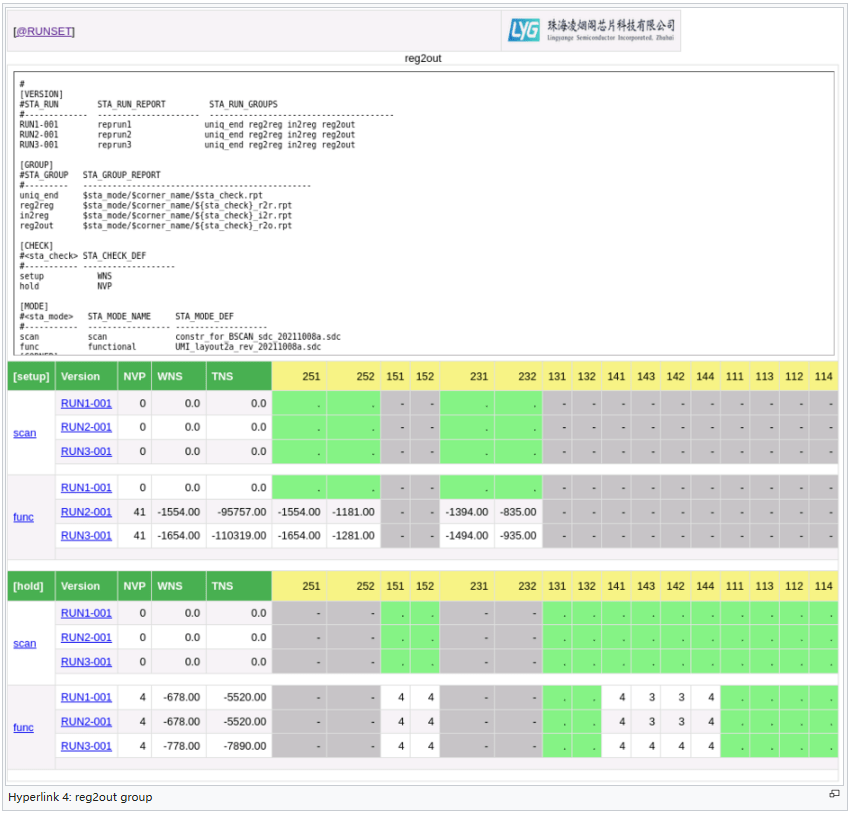
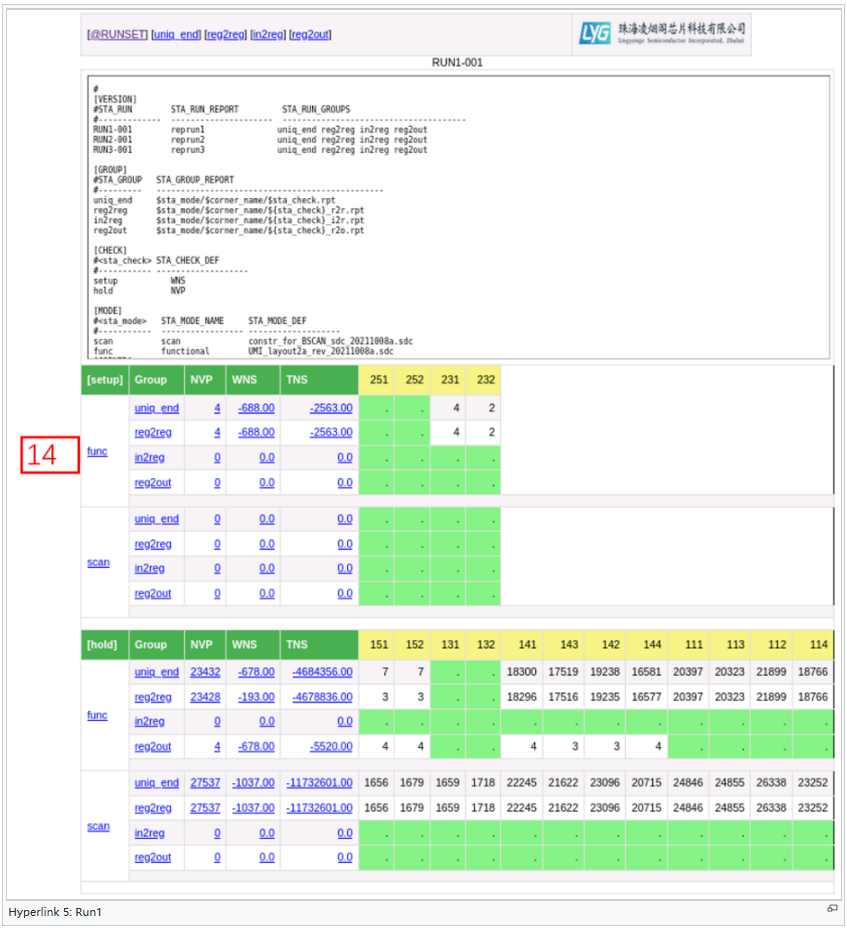
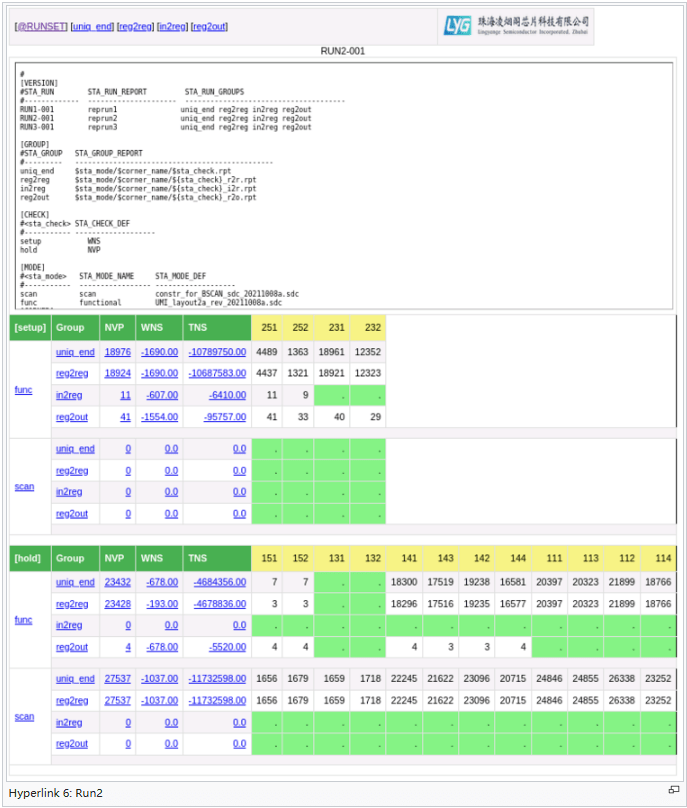
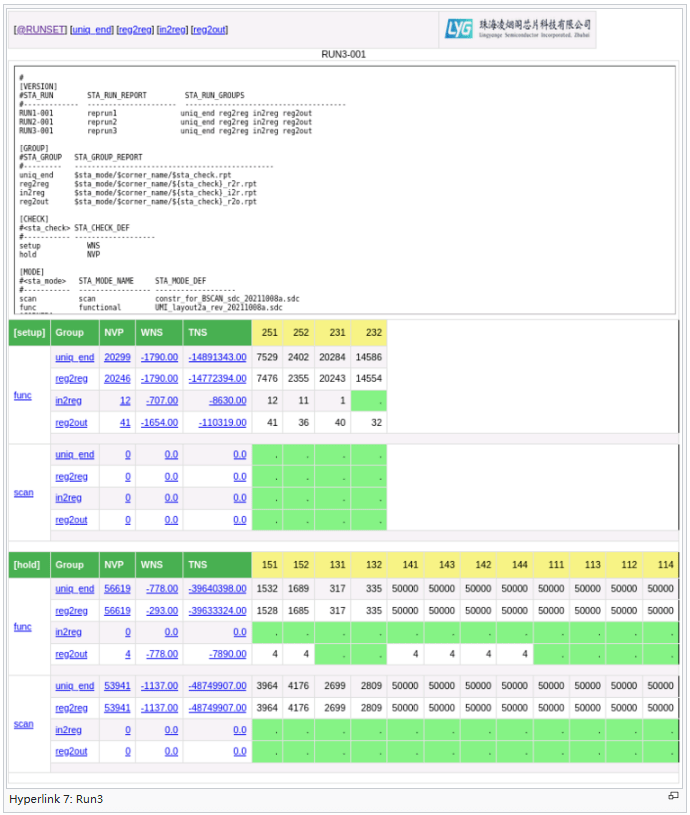
Index number 9 refers to ‘Hierarchy’ section which is upgraded feature to the package and is illustrated in details in the next two chapters.
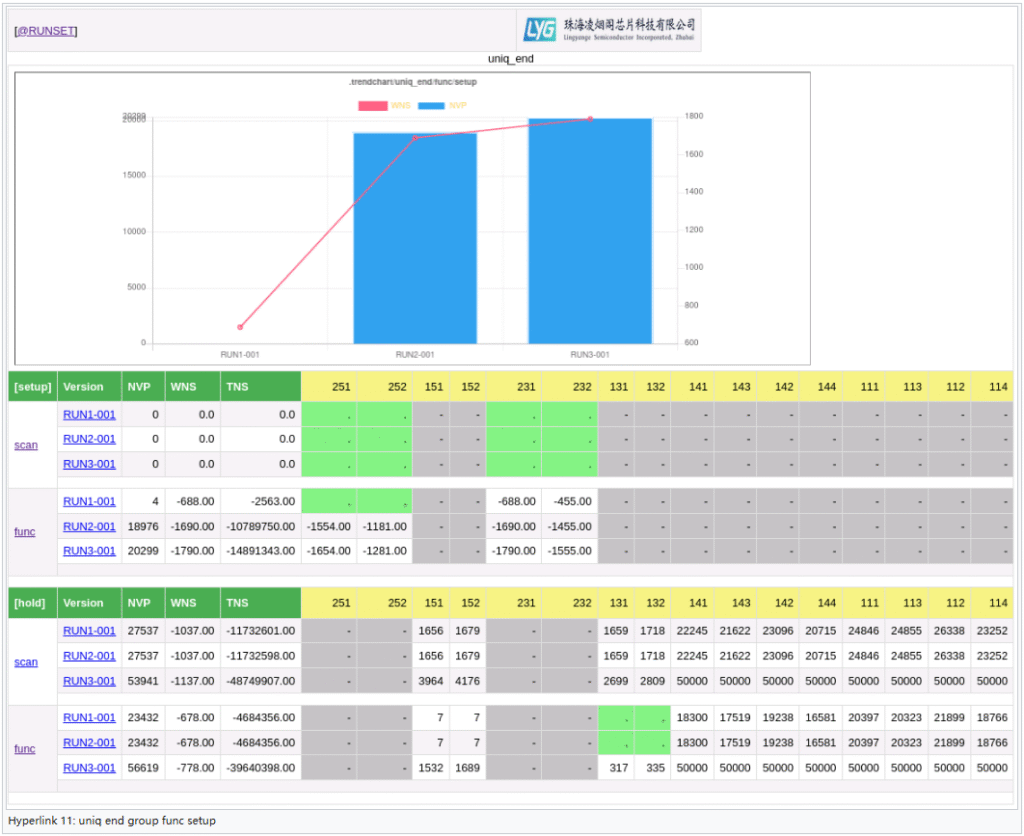
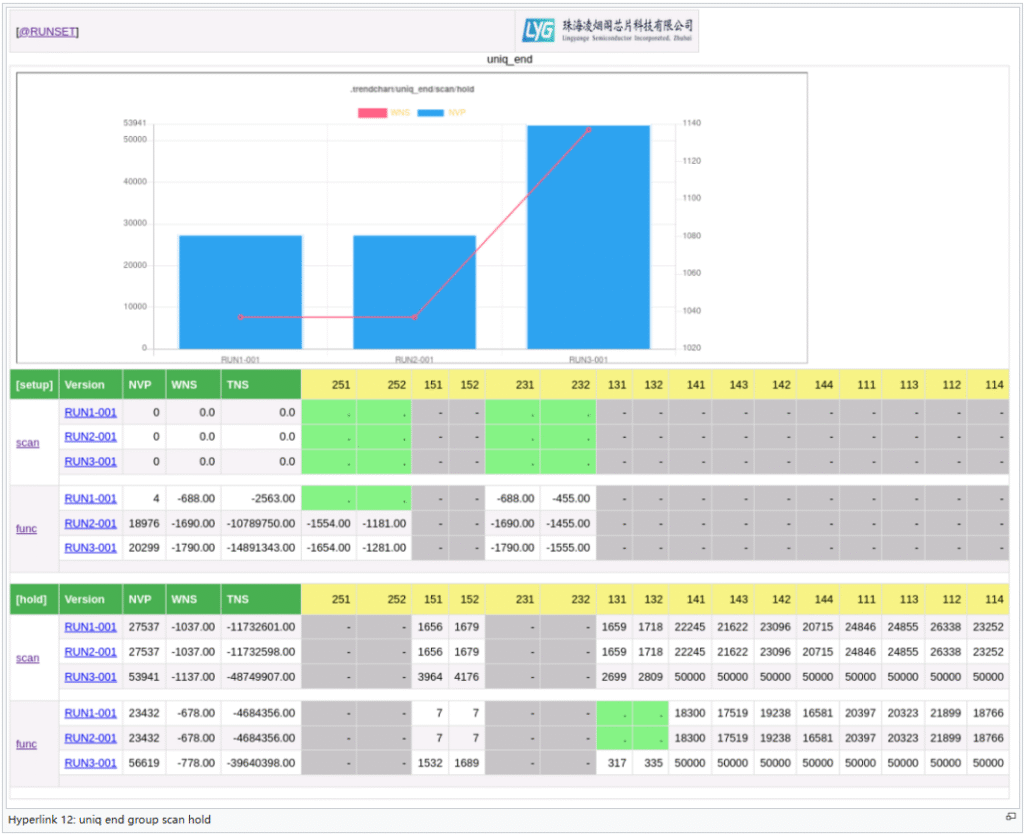
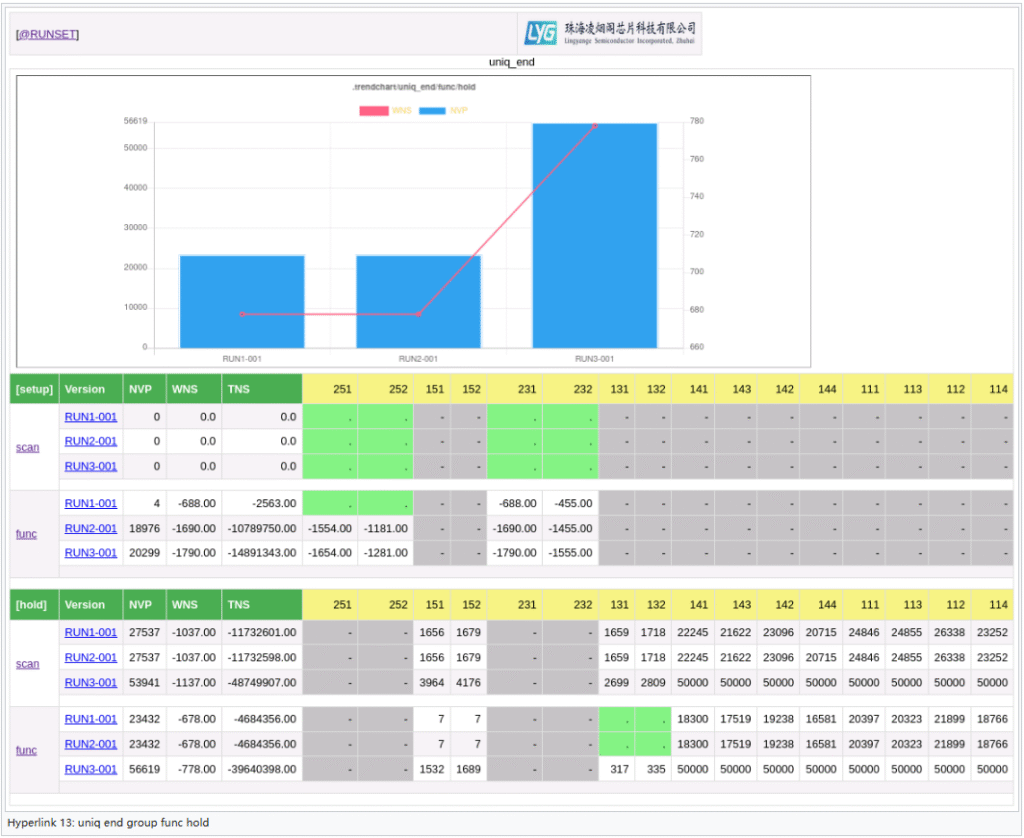
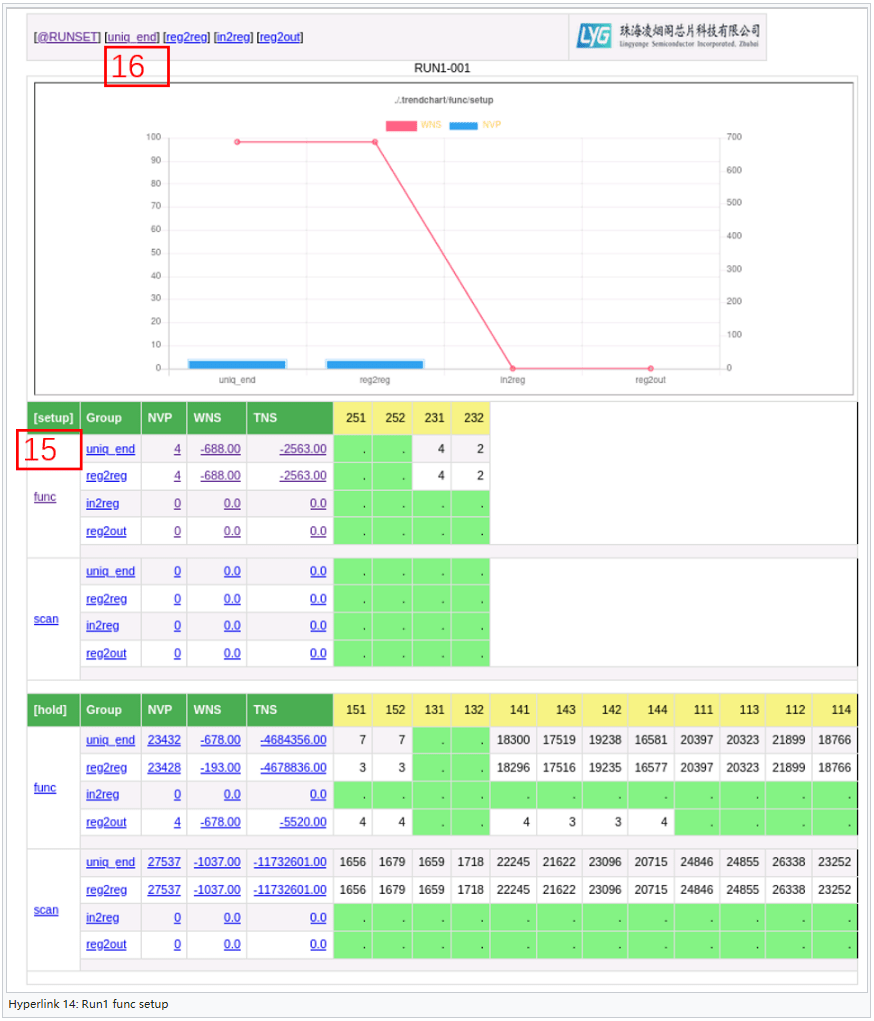
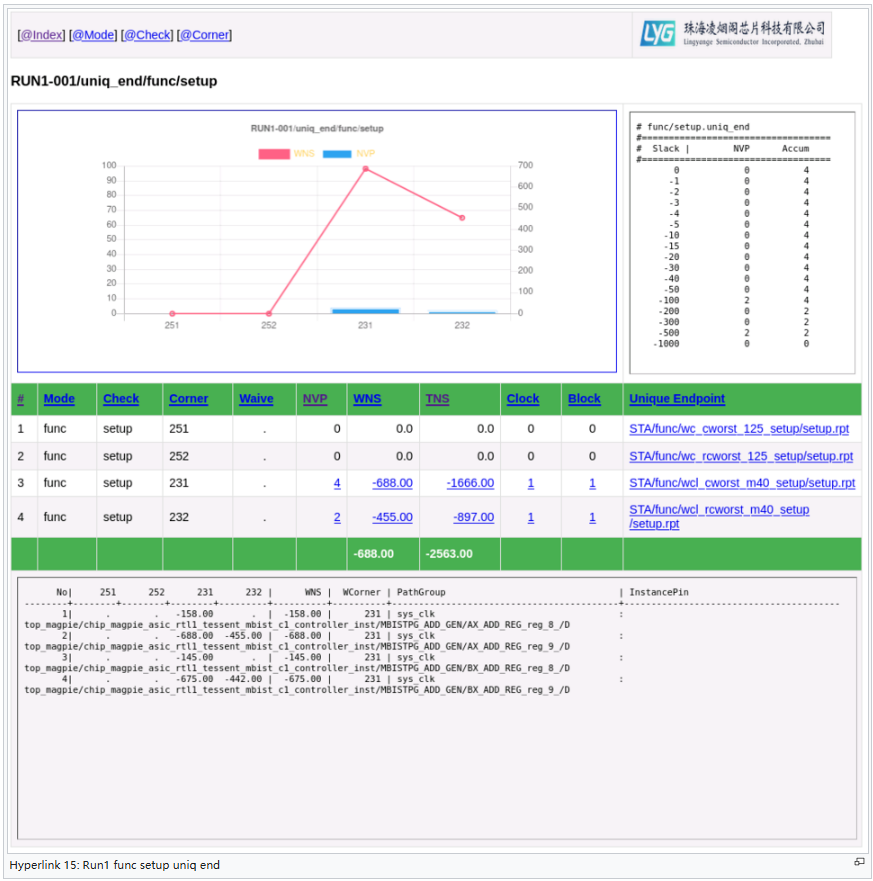
Hyperlink 16 is the same as Hyperlink 8, there is no need to show it again.
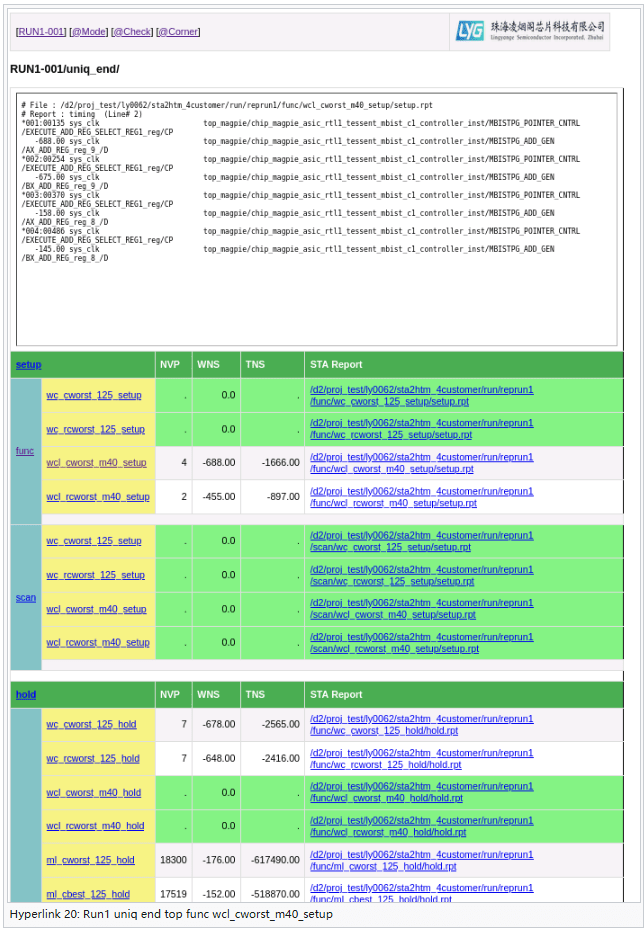
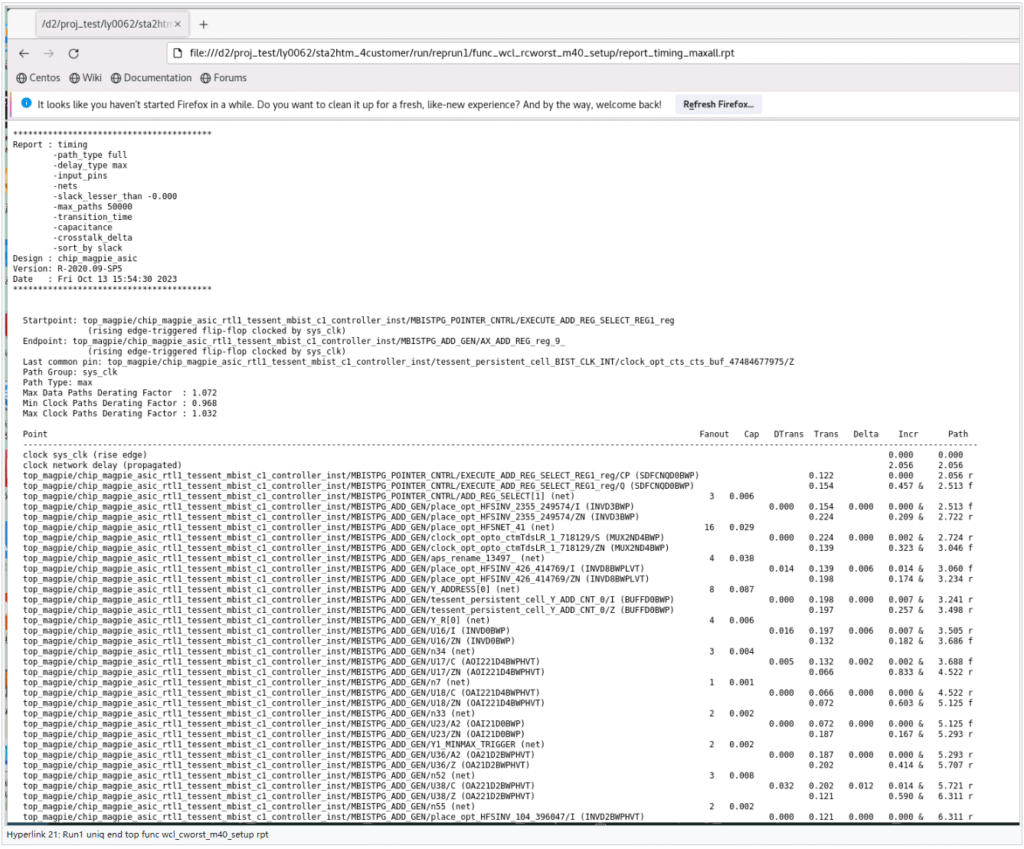
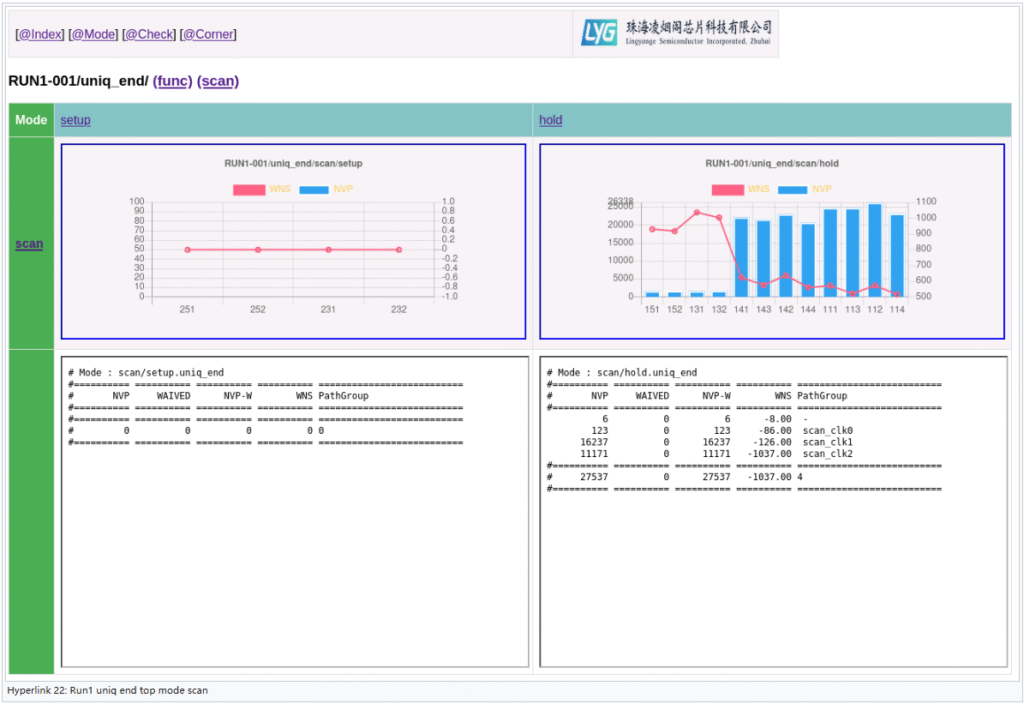
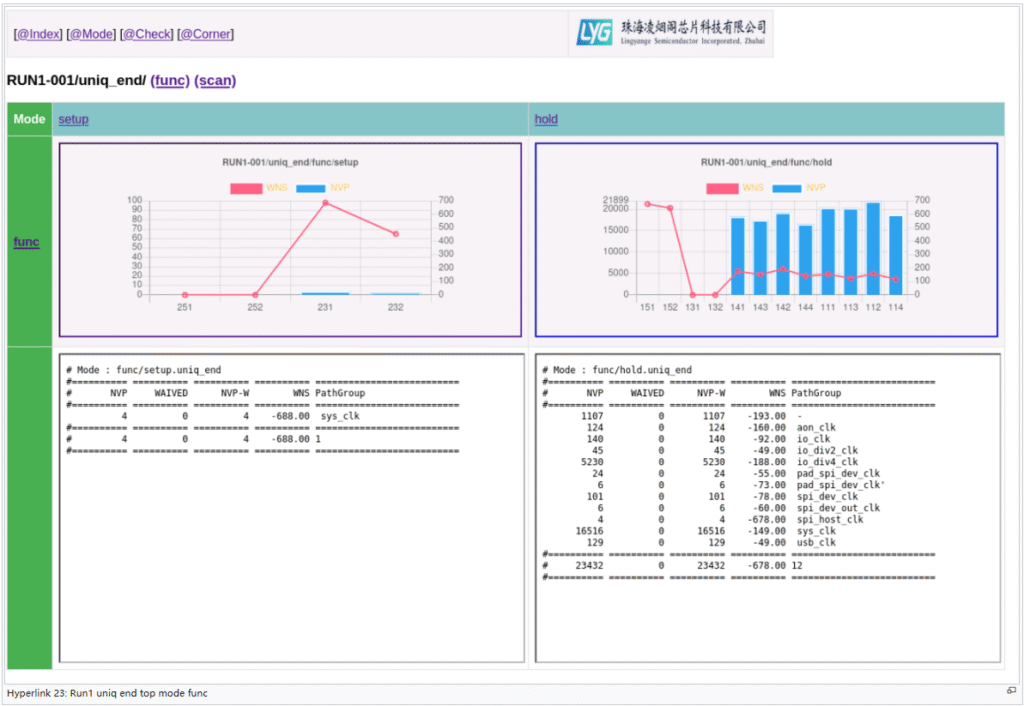
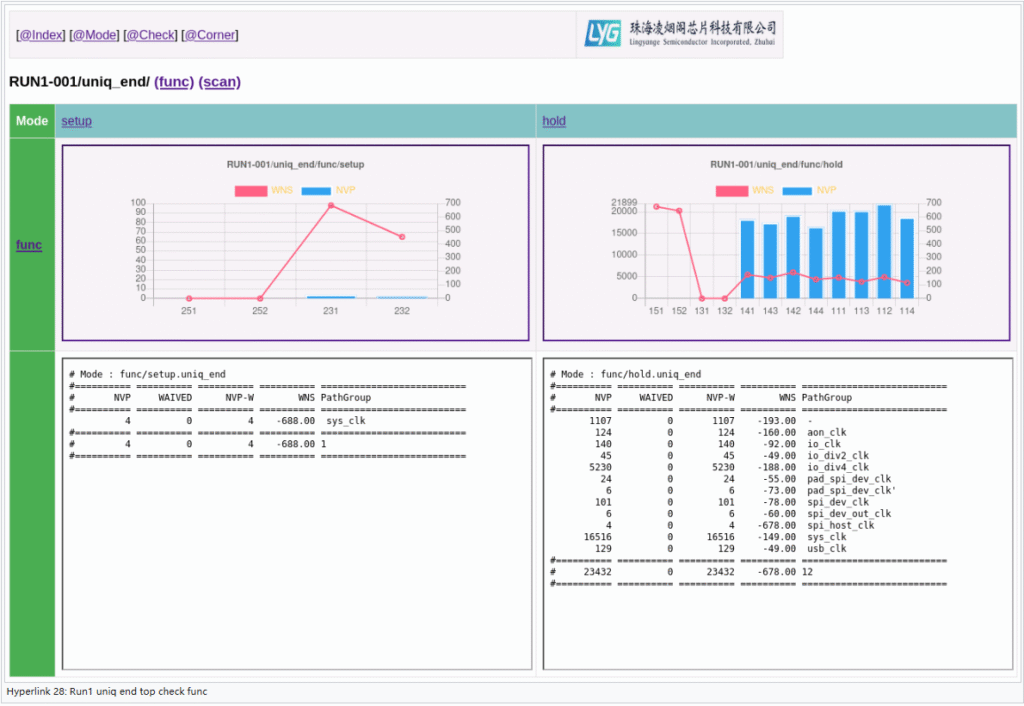
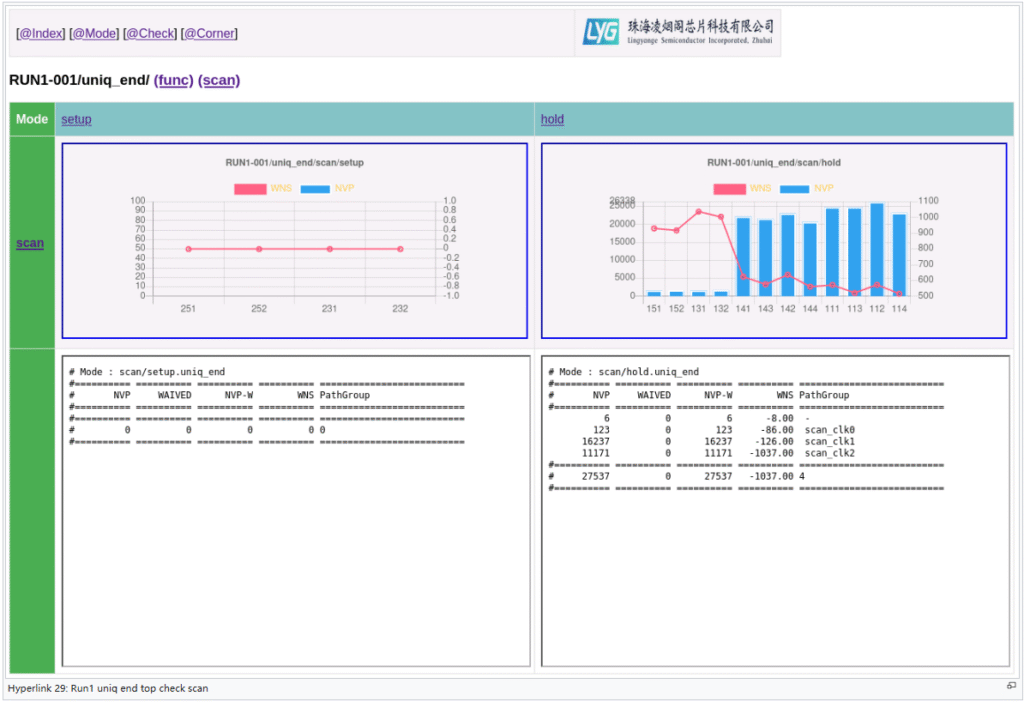
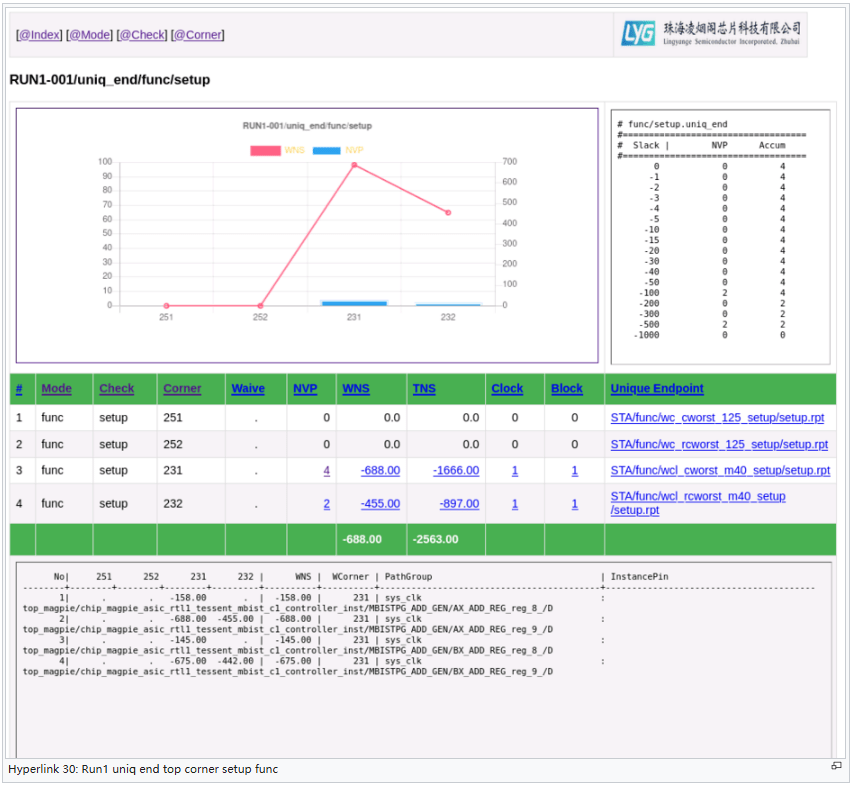
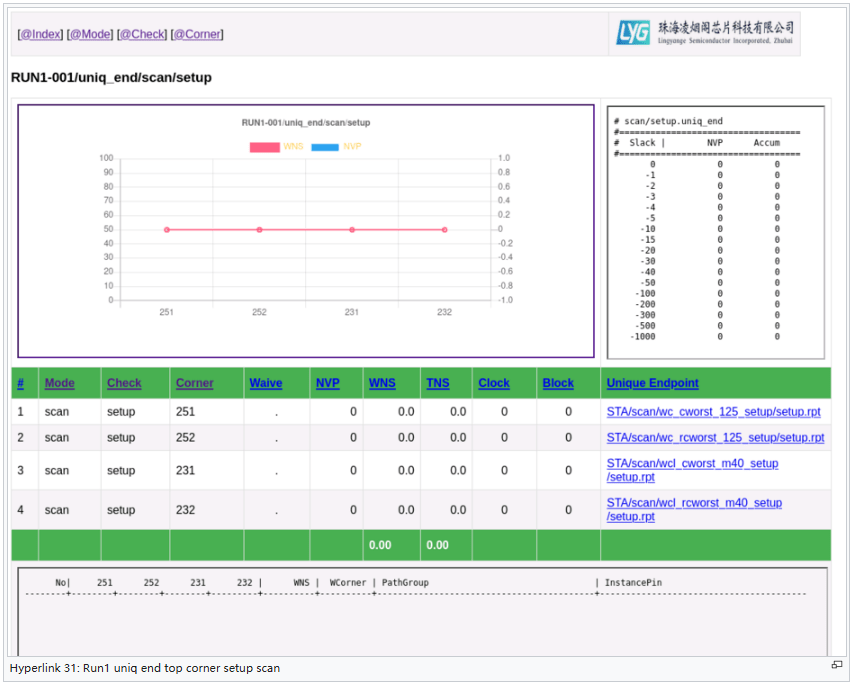
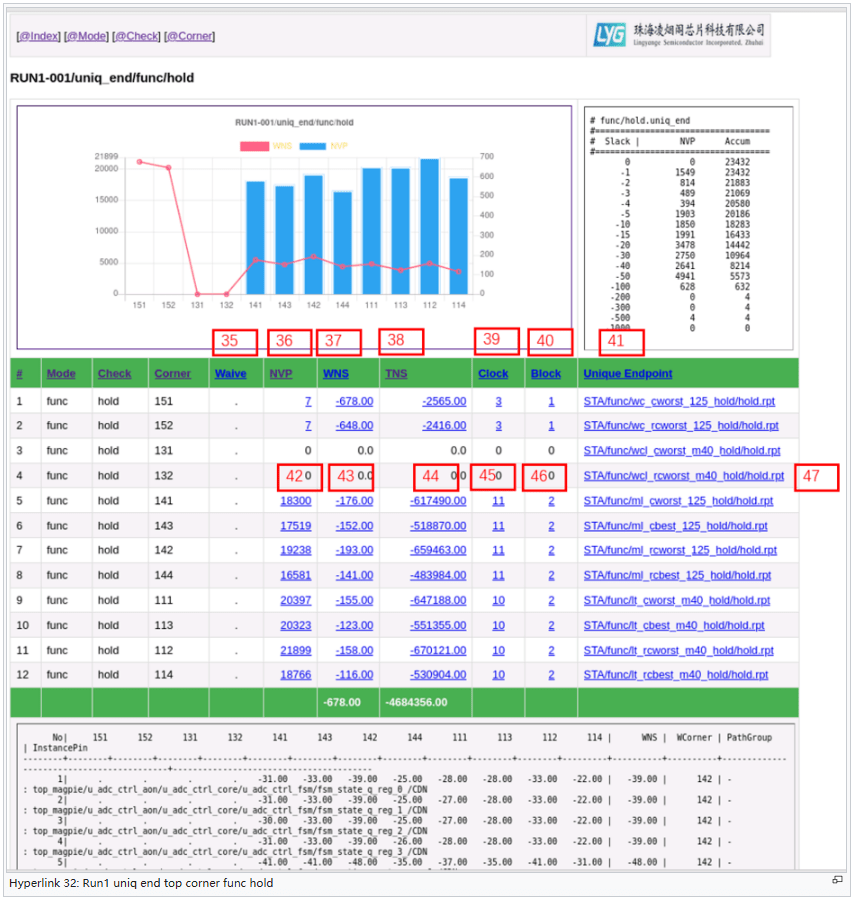
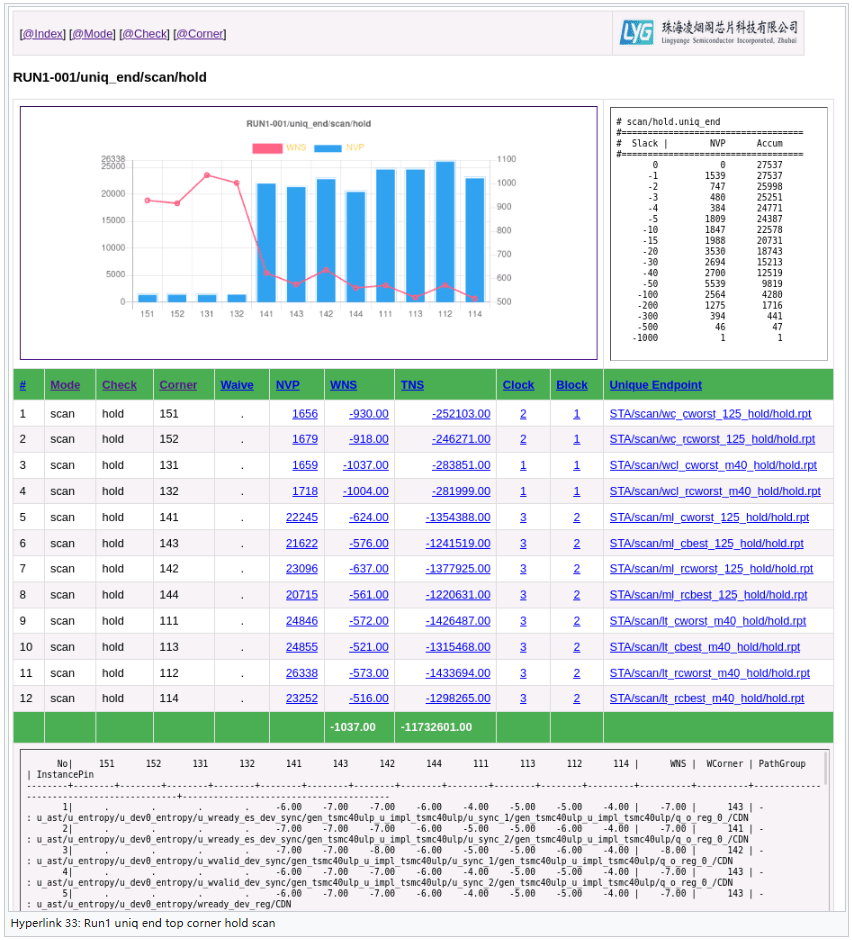
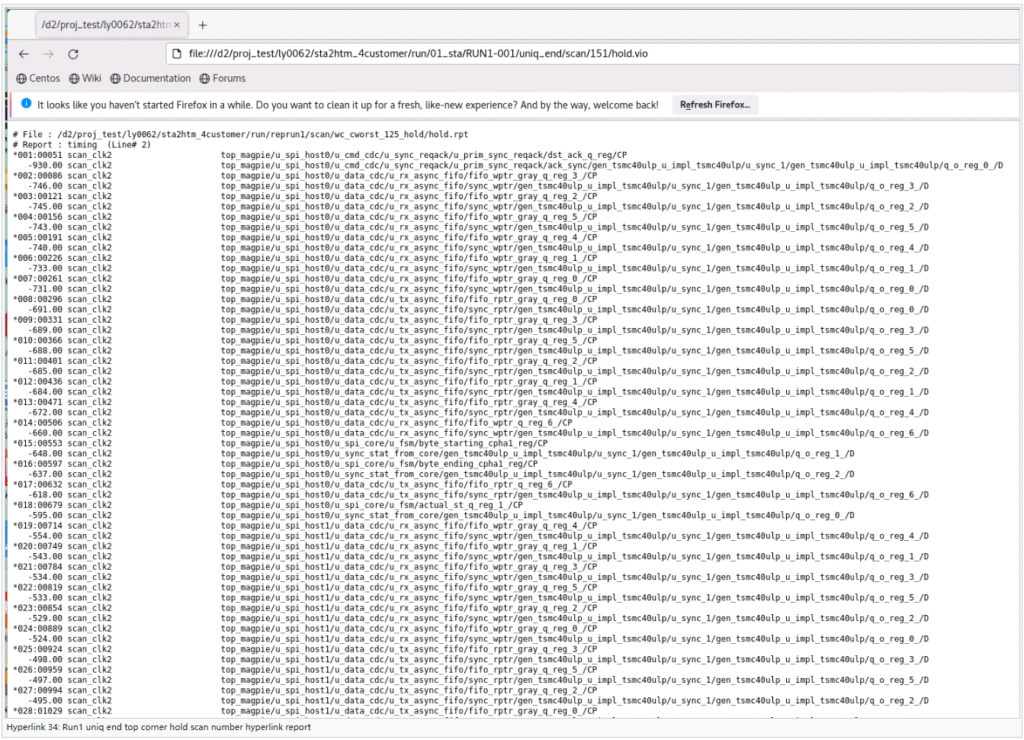
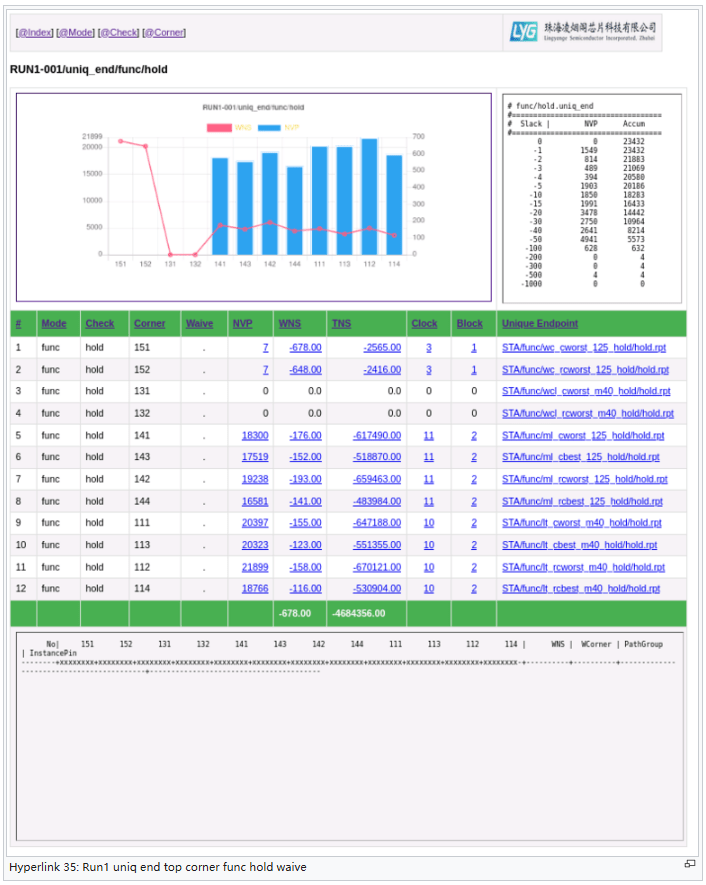
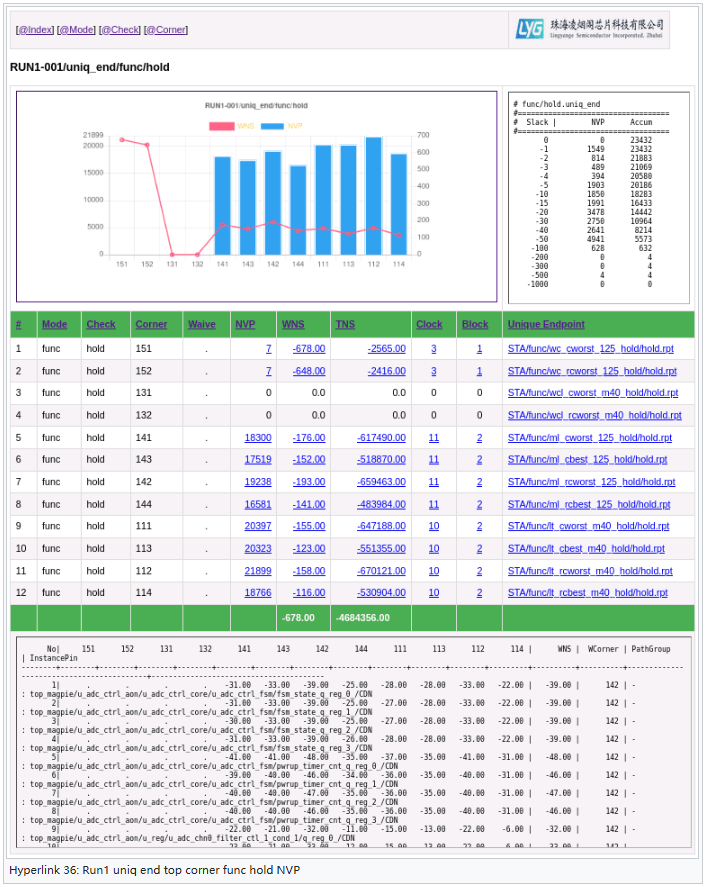
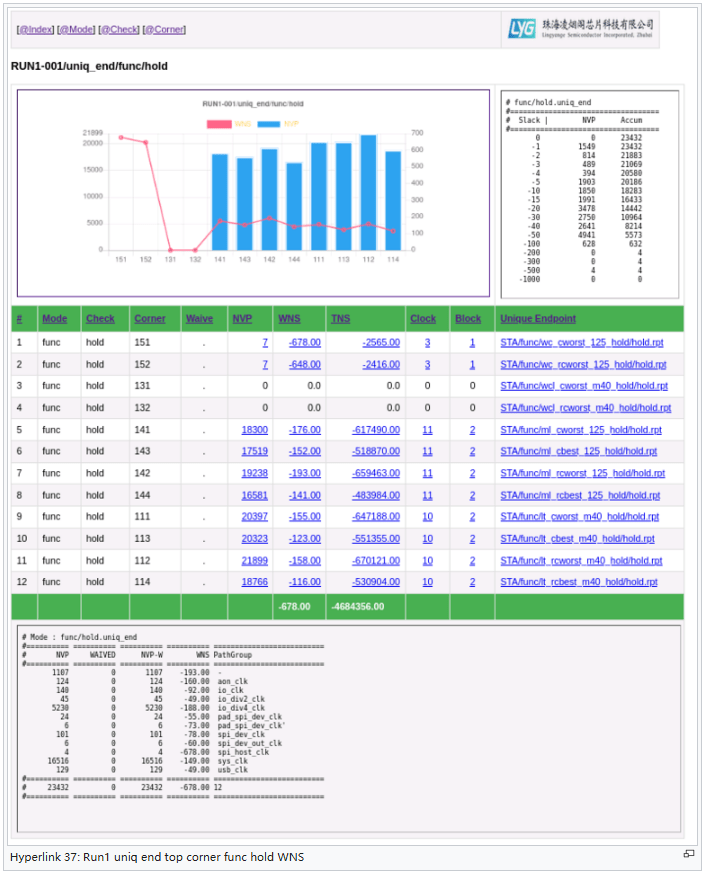
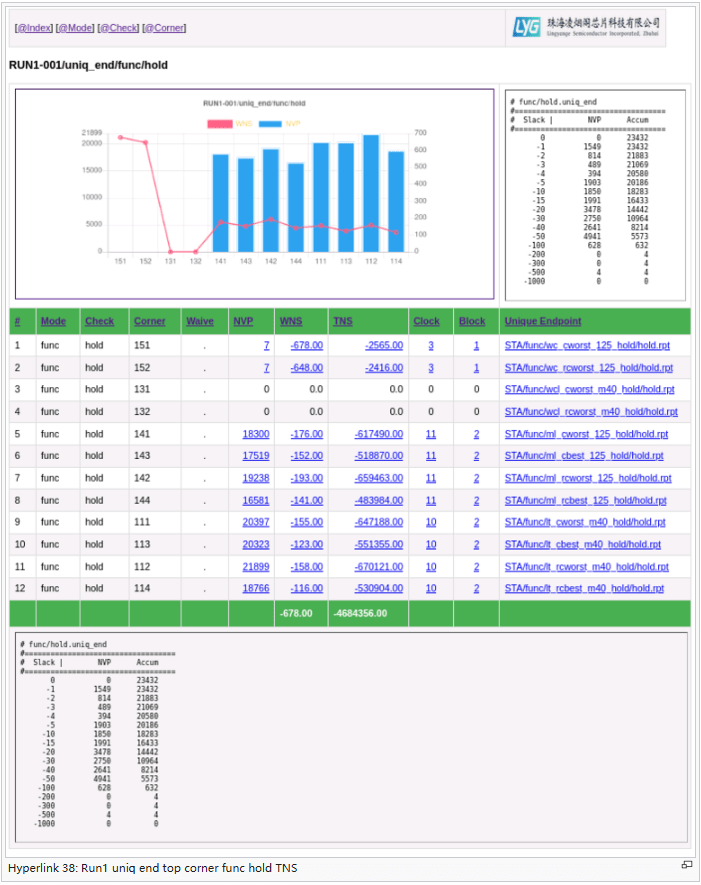
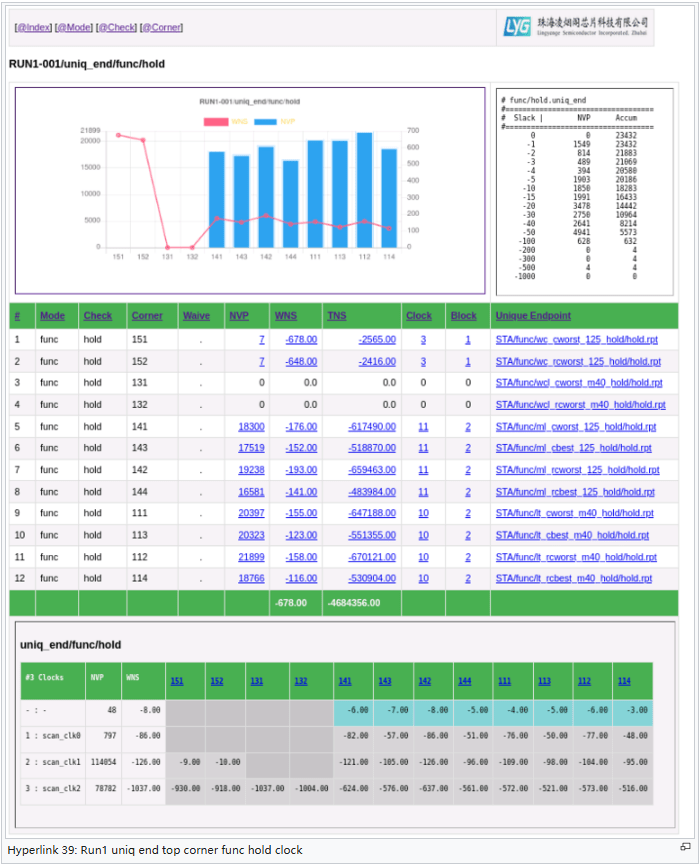
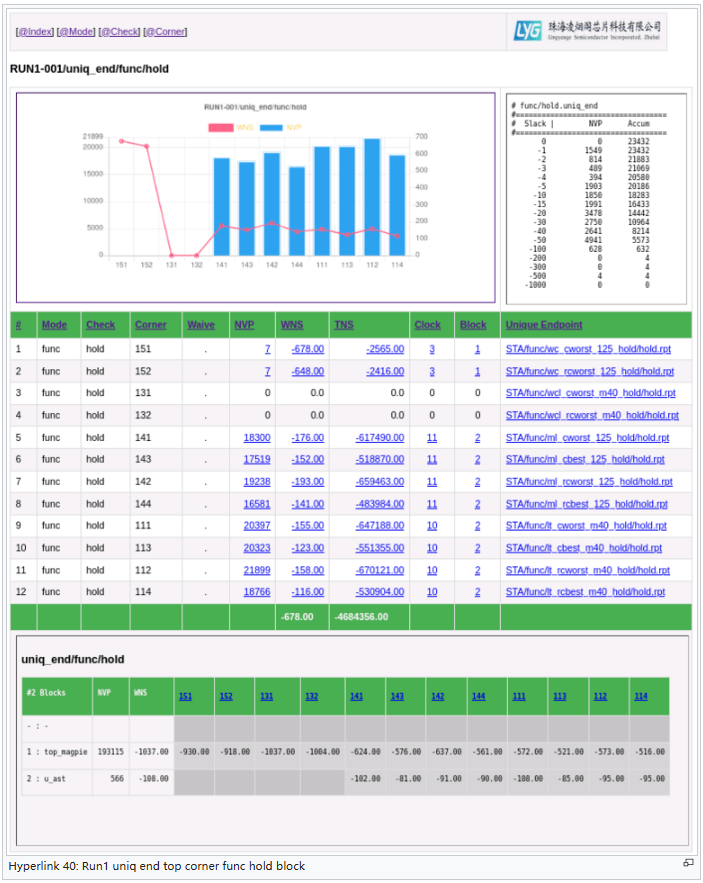
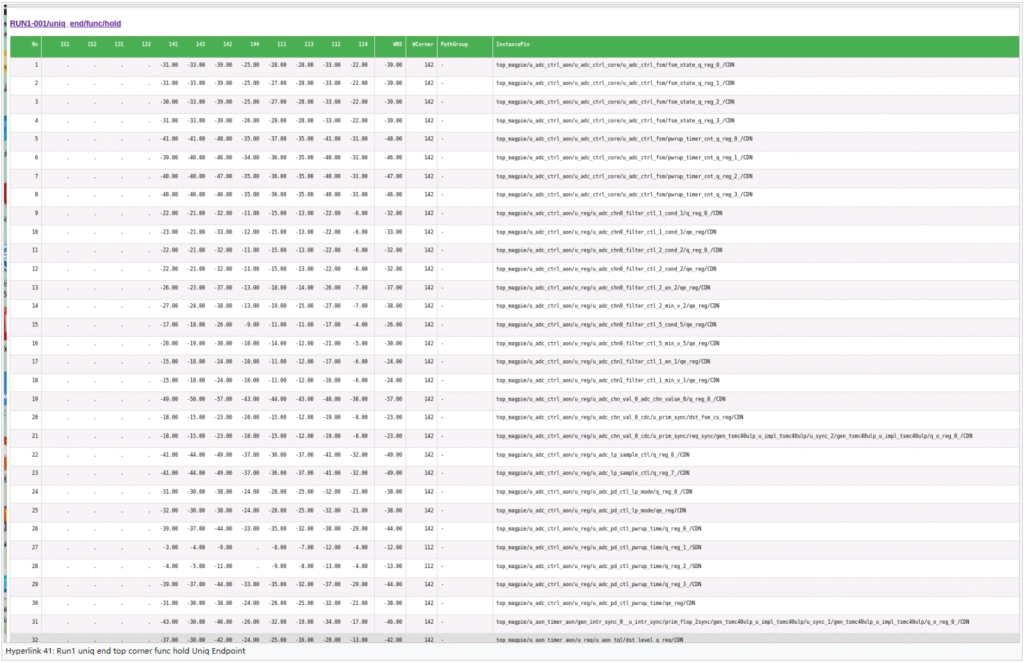
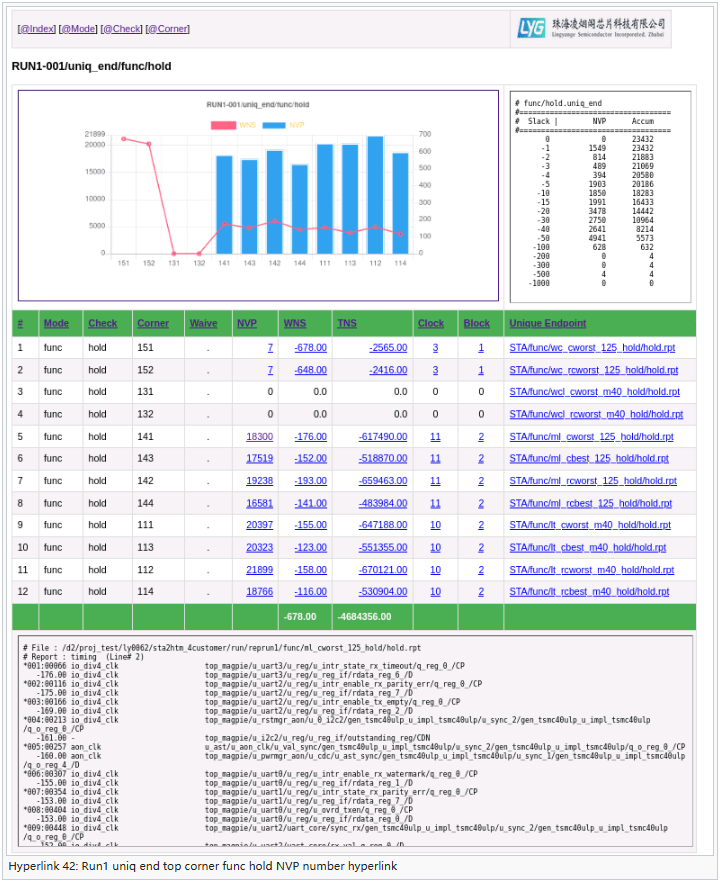
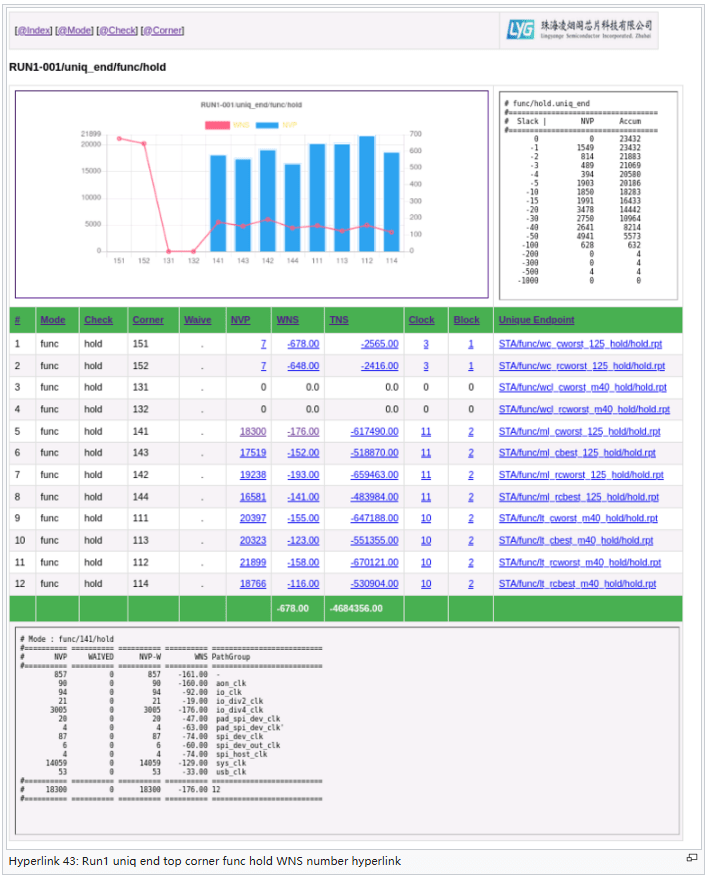
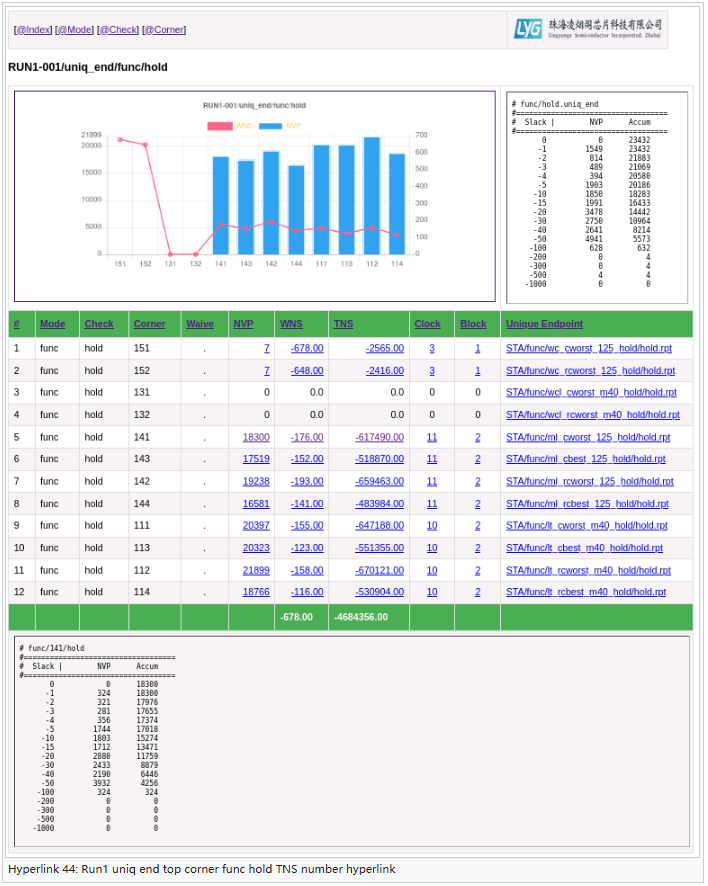
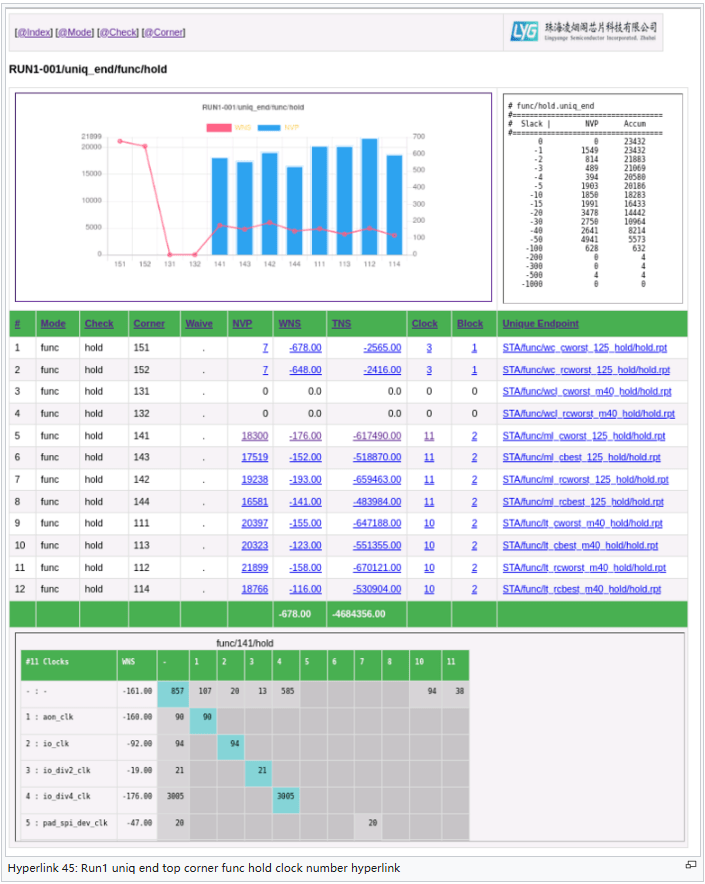
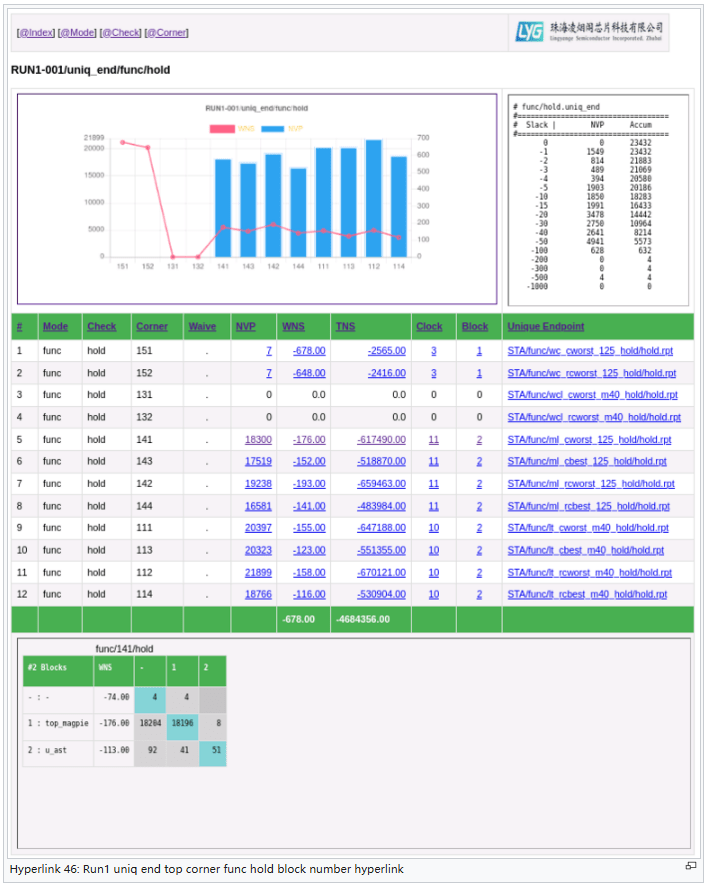
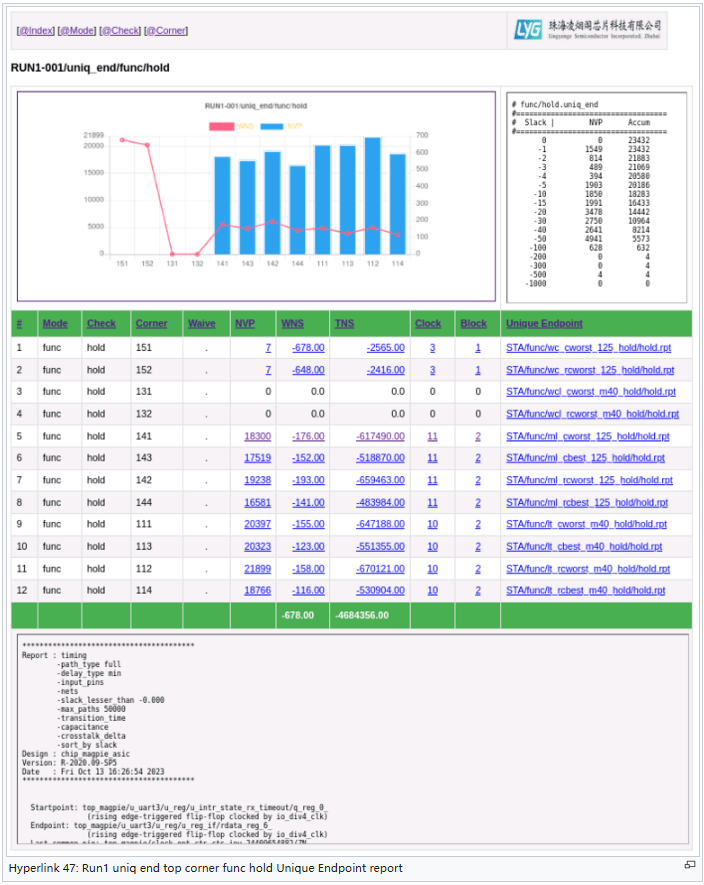
Understand text reports:
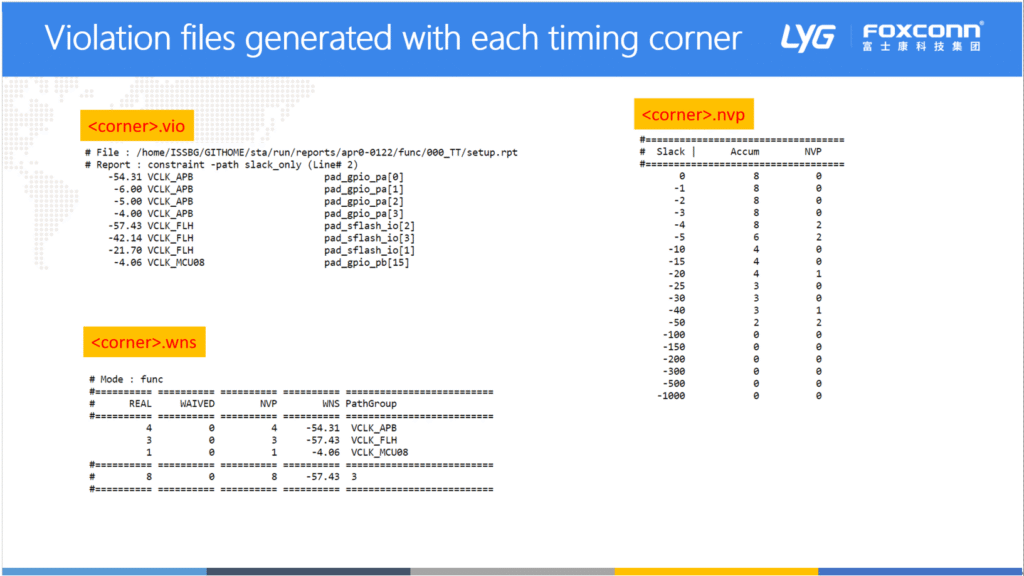
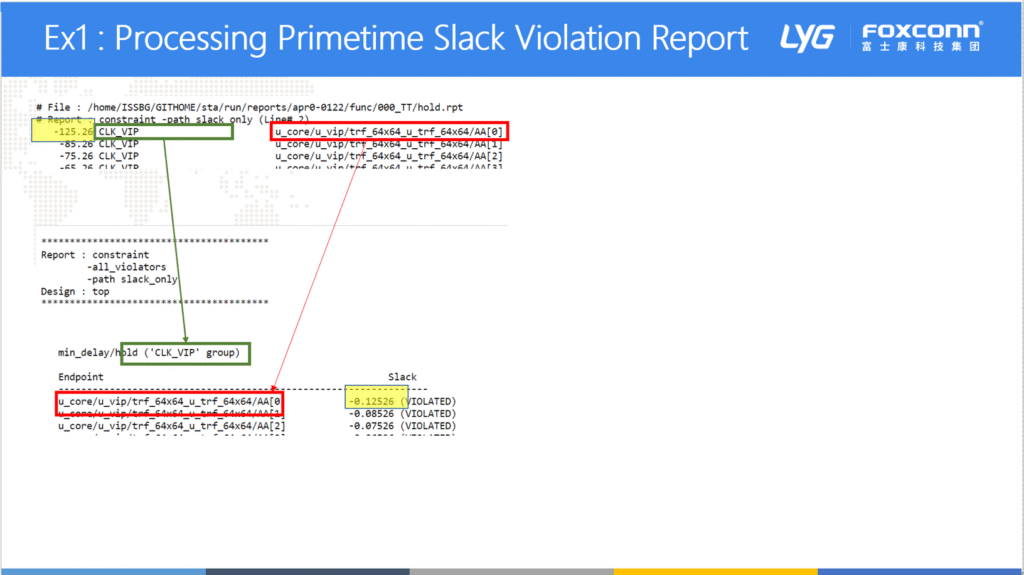
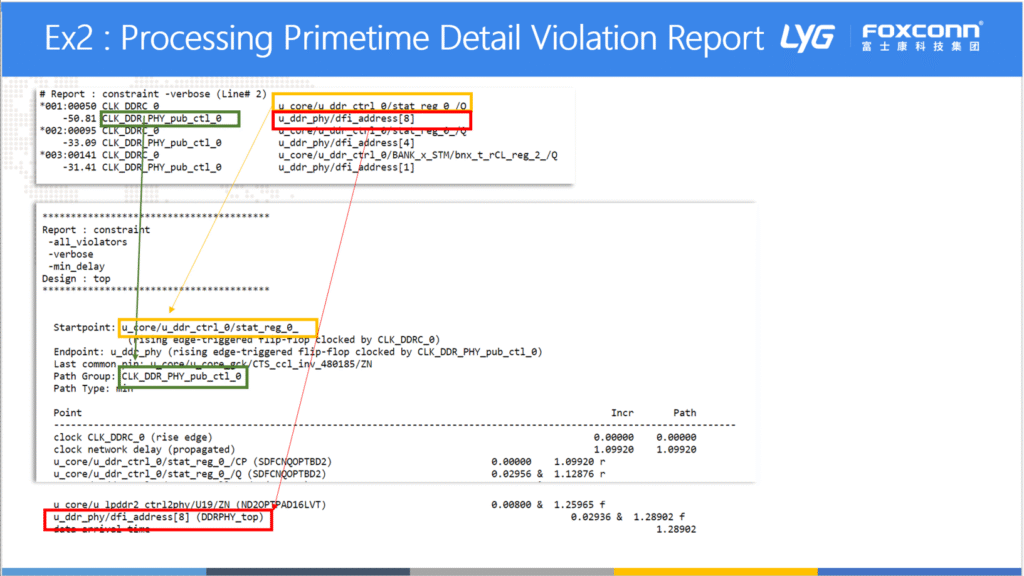
Adding hierarchical report to STA2HTM package:
In this upgrade of package, we’ll add hierarchical report to original web pages. Under ‘run/01_sta’ directory, ‘sta2htm.hiermap’ map file must be defined to have hierarchical report shown in final report. A typical file of ‘sta2htm.hiermap’ is shown below:
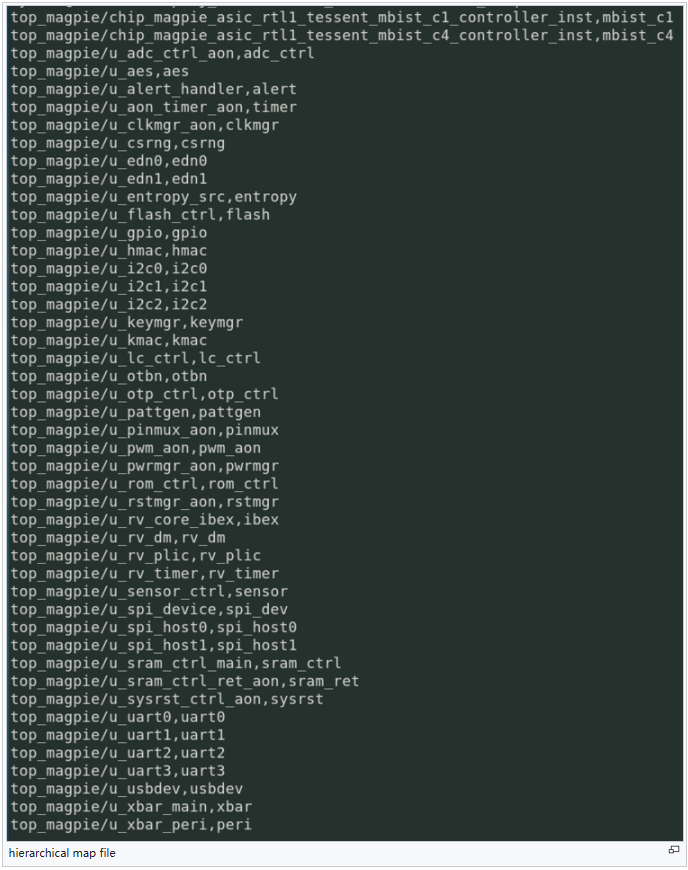
There are two columns of data in this file, which are separated by comma. string before comma is original block hierarchical name; violations related to these blocks are recorded and categorized to those blocks; violations outside of these blocks are categorized to ‘TOP’. Original block names would be mapped to target name (-second column of data file). Note: in figures only target names would be shown.
Modifications are made to ‘$STA2HTM/tcl/STA_PT.tcl’. In the script, if report file is ‘hold.rpt’ or ‘setup.rpt’, (not hold_r2r.rpt, setup_i2r.rpt, etc.), new script would dump NVP number to $STA_RUN/.hier/$sta_mode/$sta_corner/$sta_check/HierNVP and WNS number to $STA_RUN/.hier/$sta_mode/$sta_corner/$sta_check/HierWNS. And then the new script would extract NVP, WNS of each block (‘inner’ – within block in which violation path is both start and end with the block and ‘IF’ – interfacing block in which violation path is either start or end with the block), dump block map target name, NVPinner and NVPIF to $STA_RUN/.hier/$sta_mode/$sta_corner/$sta_check/NVP_vs_hier’ while block map target name,WNSinner and WNSIF to $STA_RUN/.hier/$sta_mode/$sta_corner/$sta_check/WNS_vs_hier.
Modification is also made to ‘$STA2HTM/bin/sta_index_run’. Command ‘::LIB_STA::report_hierarchy_run’ is added to the script. In this script, ‘$STA2HTM/tcl/LIB_STA.tcl’ is sourced, which would load all necessary tcl scripts, including ‘STA_INDEX.tcl’, ALL with ::LIB_STA name space. Inside ‘STA_INDEX.tcl’ script, we added ‘report_hierarchy_run’ procedure. Added command would then execute this procedure. Firstly, ‘report_index_runset’ procedure in ‘STA_INDEX.tcl’ is modified. Overview page ‘index.html’ under ‘$STA2HTM/run/01_sta’ directory has its top frame containing configuration file replaced by a hyperlink. This greatly saves the space in web page. Secondly, ‘hierarchy’ section is added to the bottom of web page, with links to ‘$sta_run/hierarchy.htm’, which was created in ‘report_hierarchy_run’ procedure. This page tabulates NVP/WNS under all corners of setup and hold violations. Once NVP hyperlink is clicked, inner and IF NVP versus each block is plotted in top frame; while if WNS hyperlink is clicked, NVP/WNS versus each block is plotted in bottom frame. Still in ‘report_hierarchy_run’ procedure, $sta_run/.hier/$sta_mode/$sta_corner/$sta_check/hierNVP.htm is created for top frame chart; and $sta_run/.hier/$sta_mode/$sta_corner/$sta_check/hierWNS.htm is created for bottom frame.
Here’s snapshot of top view of web page:
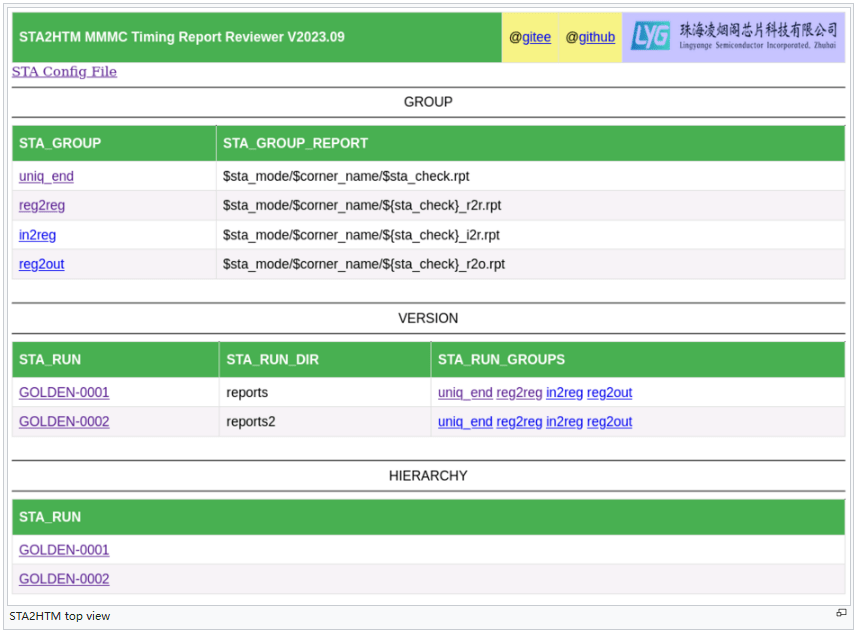
When related version hyperlink (in above example, either GOLDEN-0001 or GOLDEN-0002) is clicked, it transfers to hierarchy page, which is shown below:
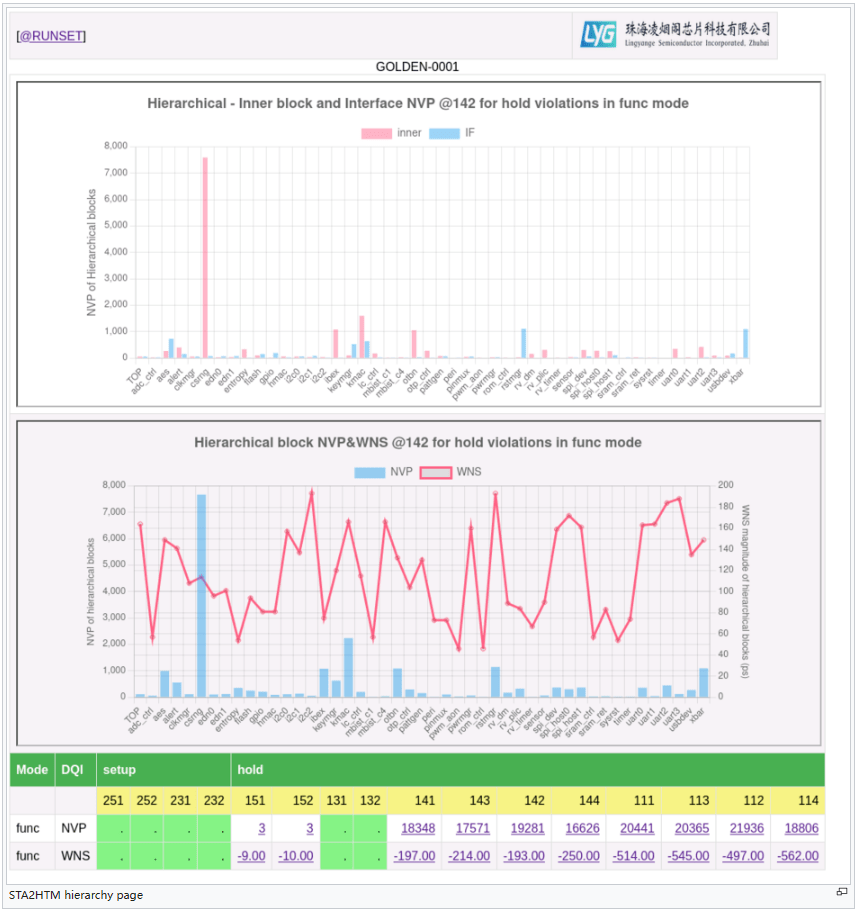
Top frame figure is shown when NVP row hyperlinks are clicked while bottom frame figure is shown when WNS row hyperlinks are clicked.
Adding version comparison feature to STA2HTM package:
If there are multiple runs for STA, reports from each run should be properly linked to each report directory, which should be then recorded in ‘Makefile.run’ and ‘sta2htm.run’ file. STA2HTM would tabulate each run with hyperlinks in top page. An example is shown below:
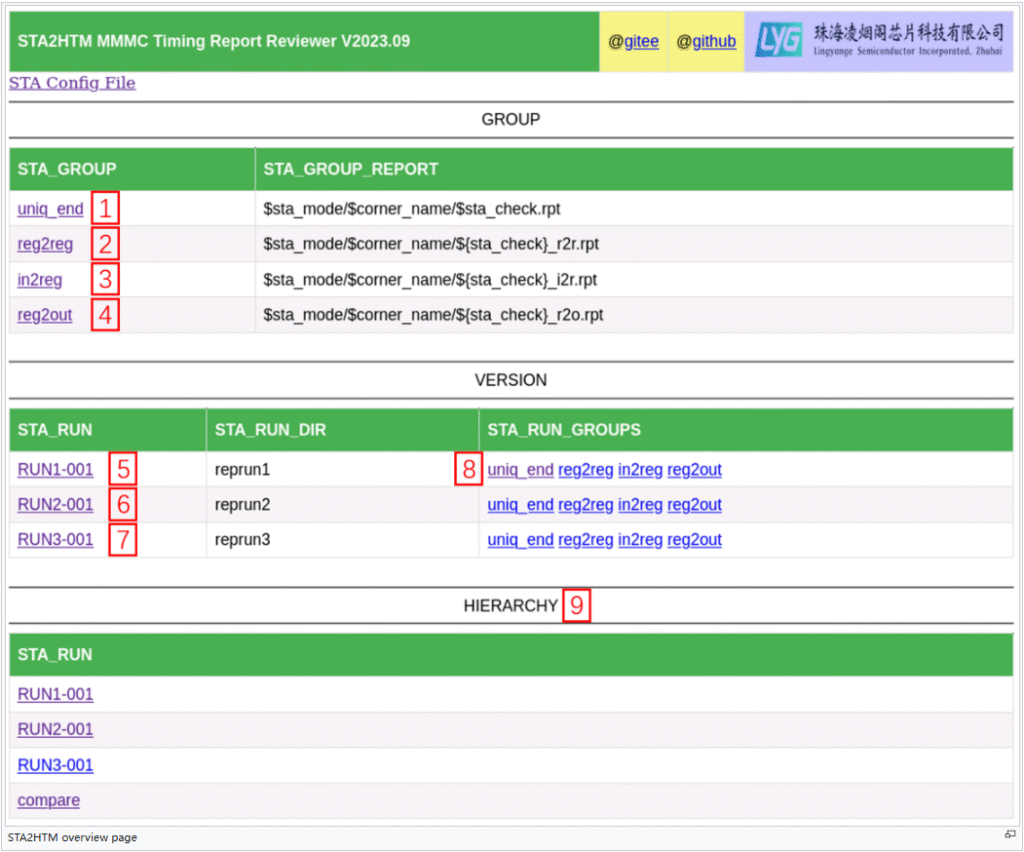
Three different runs are tabulated in VERSION and HIERARCHY sections. VERSION section belong to existed feature. HIERARCHY section is added by this upgrade. Click on ‘RUN1-001’, ‘RUN2-001’ or ‘RUN3-001’ hyperlink would show page detailed in ‘Adding hierarchical report to STA2HTM package’ paragraph. ‘compare’ hyperlink is new and for version comparison feature. Upon clicking on this link, a version comparison page would be shown and an example is displayed below:
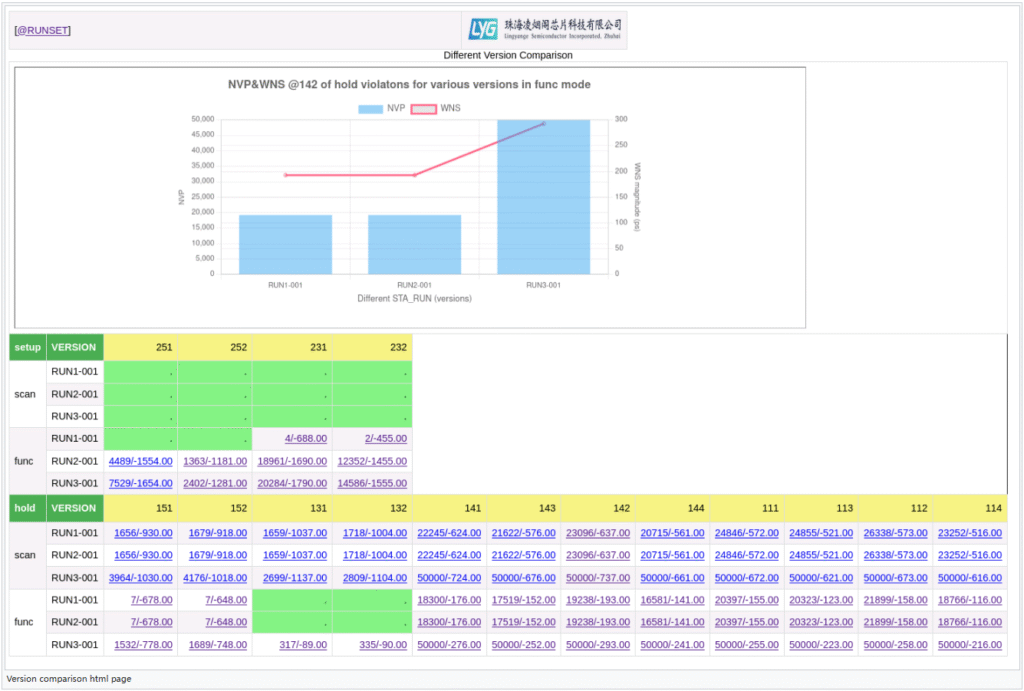
The table is split into setup and hold sections. Within each functional mode row, there tabulates three runs for apple to apple comparison. NVP/WNS number is registered under its corresponding corner column. Click on these number would display a trend chart in top frame. The chart shows the trend of NVP/WNS along three different versions. Blue columns indicate NVP while red lines indicate WNS. The complete table is clickable. Therefore, all corners’ data trend lines are ready for showing in top frame. Note: green color in the table means this corner passed.
The waive feature of STA2HTM:
Once waive files are set up, the STA2HTM would produce html report with waived results. From corner view, click scenario link would get you to the following page:
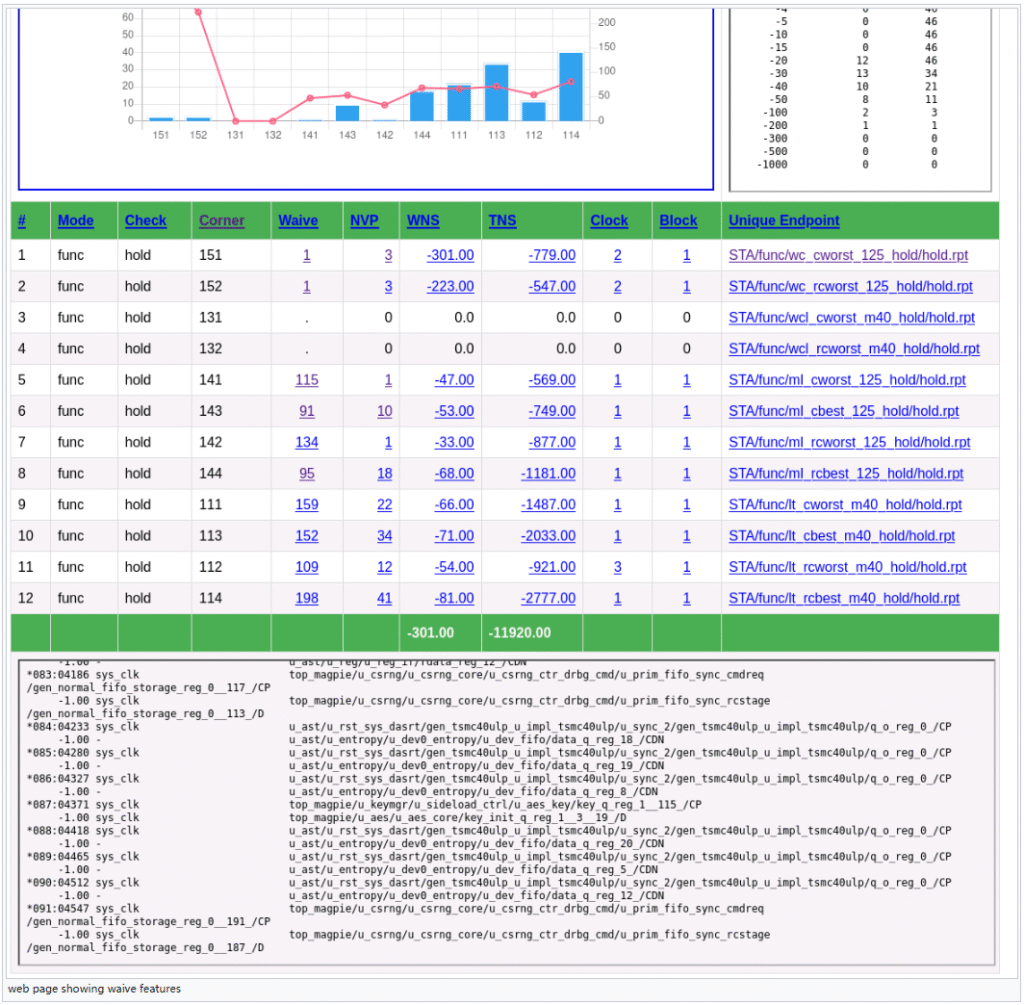
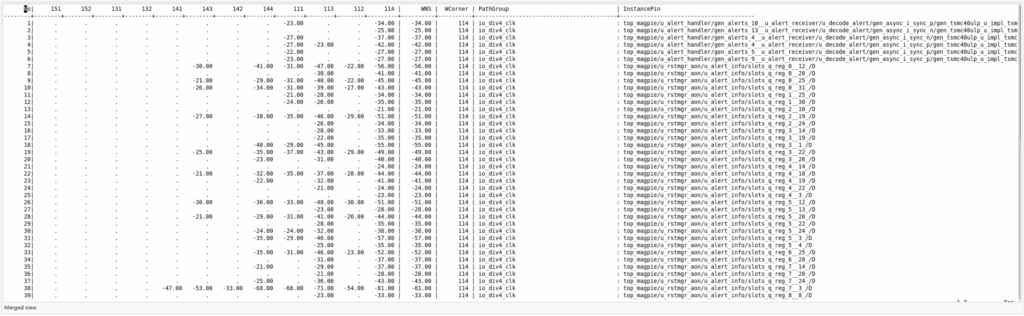
Click Waive column hyperlinks would show waived paths in frame below the table. Click NVP column hyperlinks would show NVP paths after waive. Click on ‘Waive’ or ‘NVP’ on the title would show you merged view data below the table as shown in figure below:
Set the unit of display in web:
If you’re decided to set display unit to ‘ns’ and show data in 4 significant digits, you need create a file ‘ns’ under run/01_sta directory. If this file does NOT exist, then numbers would be displayed in ps with 2 significant digits.
The main webpage’s sitemap:
The following pictures are snapshots of main webpage’s sitemap:
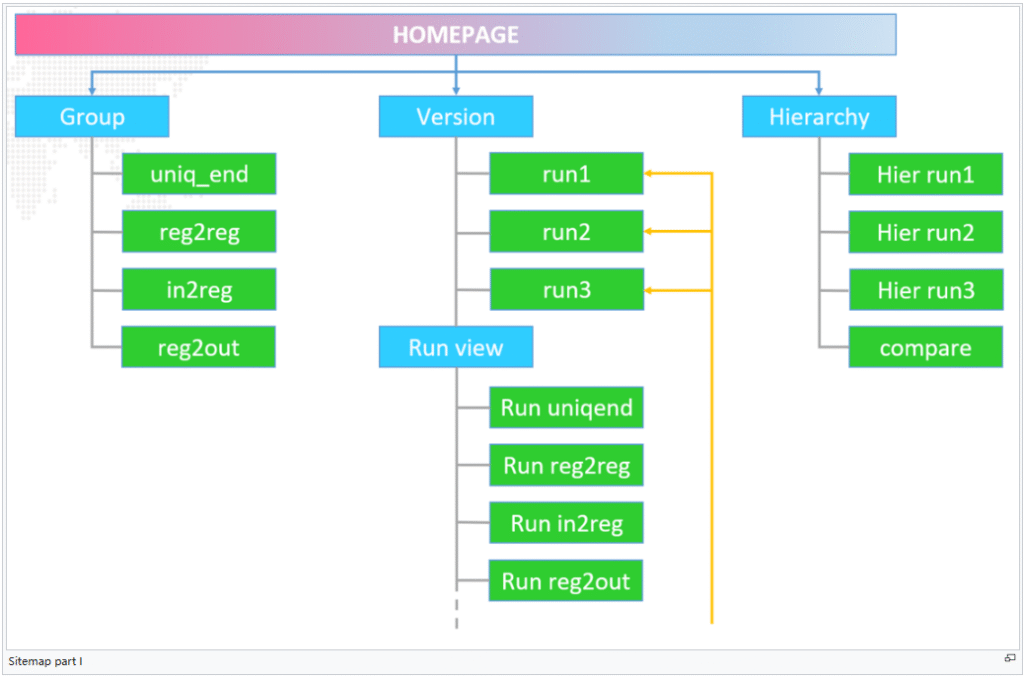
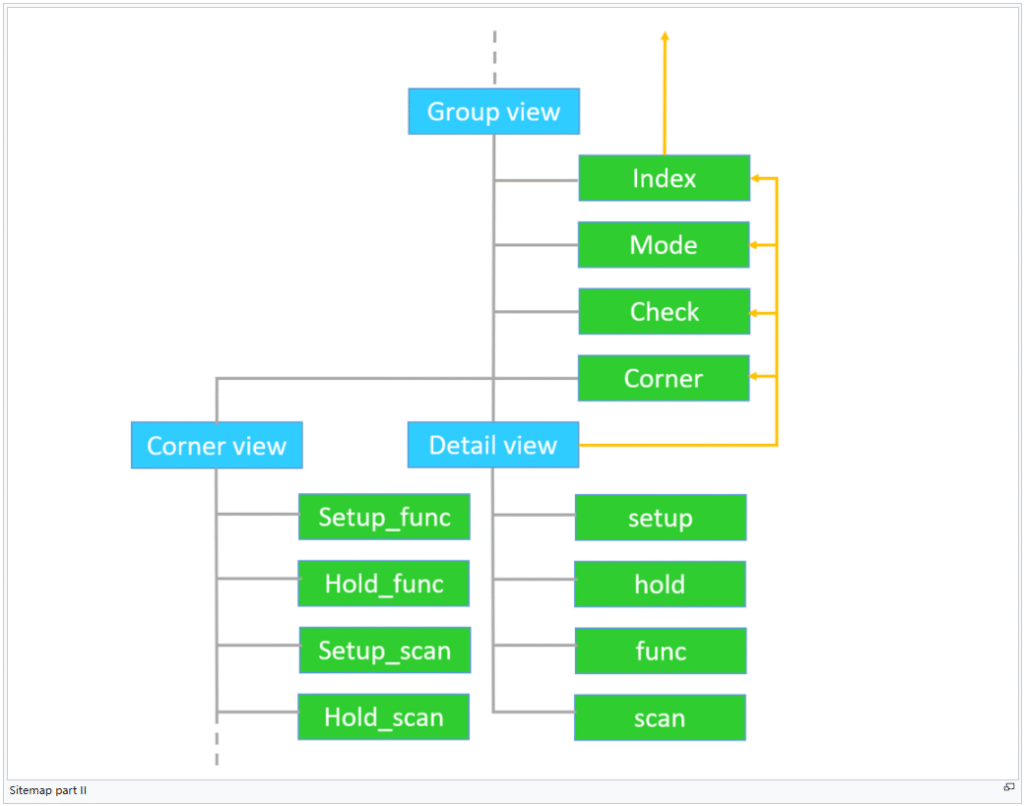
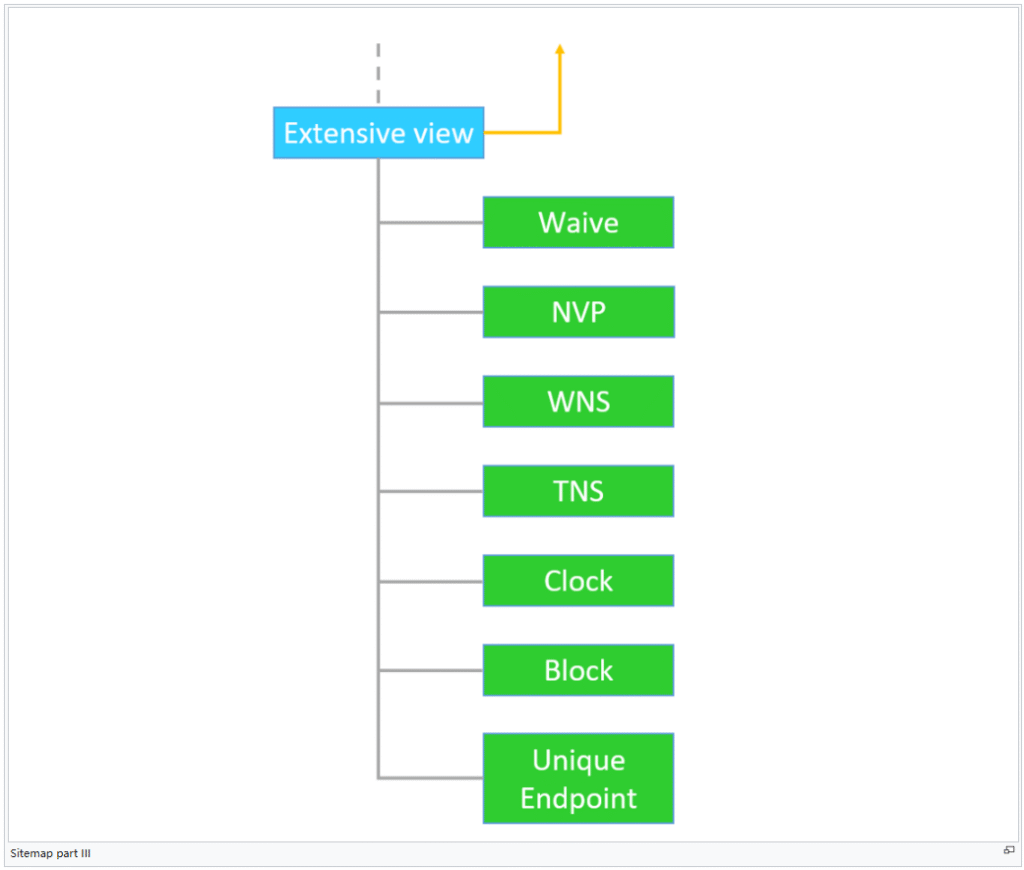
The Group view and Hierarchy are short. But Version view is long. Along this view, there are many feedback links that save user from extra clicks. Overall, the placement of sitemap is balanced links from all branches.
Programmers’ guide to STA2HTM:
The followings are flowchart diagram of STA2HTM and detailed illustration of flowchart:
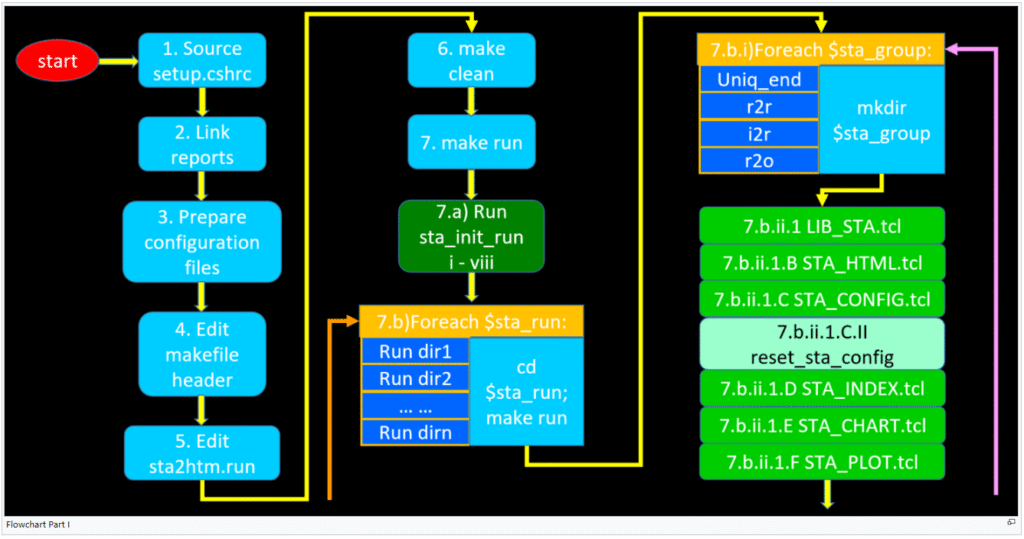
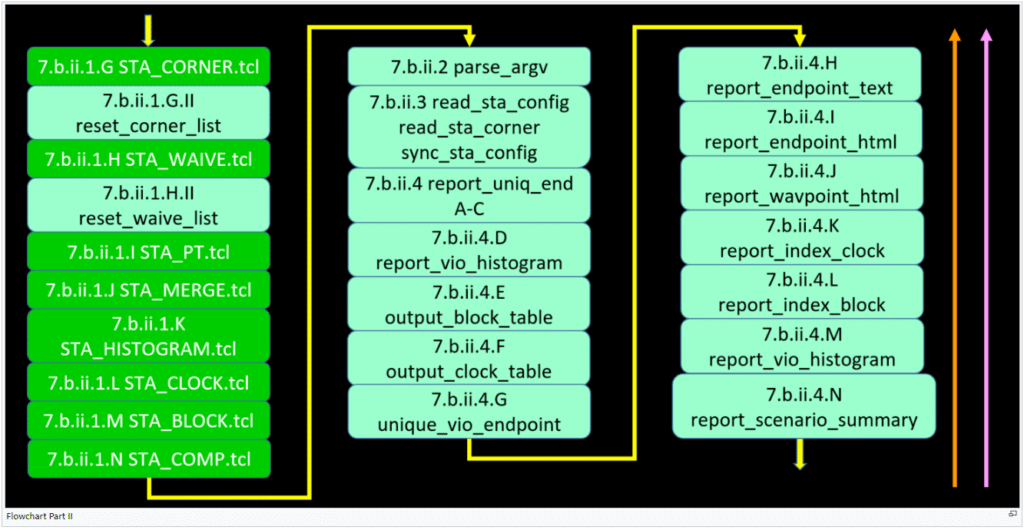
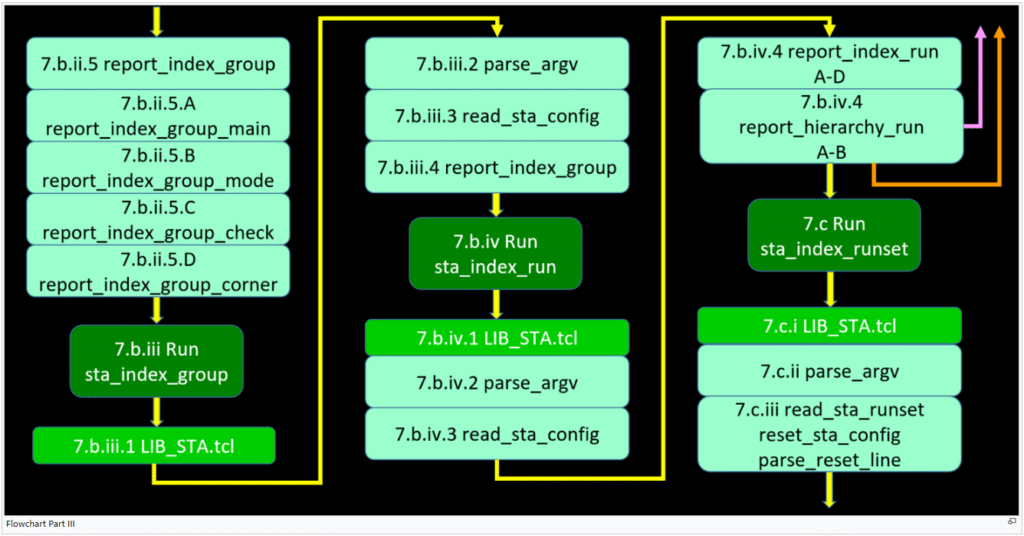
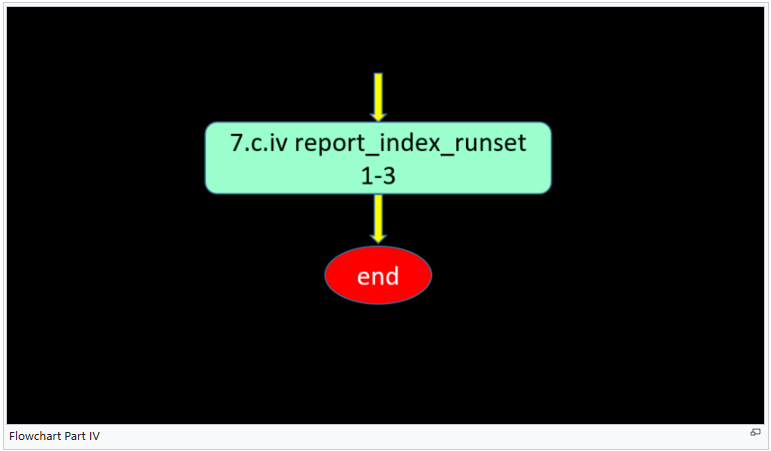
- At STA2HTM package root directory, source setup.cshrc; this would set enviromental variable STA2HTM to package root directory. In addtion, $STA2HTM/bin is pushed to path variable. This would make it possible for makefile to access all bin files under $STA2HTM/bin.
- Go to run/01_sta directory, link report directory properly to this directory. Under report directory, there should be function mode subdirectories and .sta directory. If function modes include ‘func’ and ‘scan’, you should have ‘func’ and ‘scan’ subdirectory established here. Under functional mode directory is corner subdirectories, under which [constr].rpt, [constr]_i2r.rpt, [constr]_r2o.rpt and [constr]_r2r.rpt are properly linked, where [constr] is either ‘hold’ or ‘setup’.
- Prepare 4 configuration files under .sta:
- a)Sta2htm.cfg //functional modes and constraint types are specified, corner indexes of each scenario are also specified;
- b) Sta2htm.corner //look up table connecting corner index with corner name;
- c)Sta2htm.trend //makefile to get trend information, seldom used script;
- d)Sta2htm.waive //waive violations based on slack, pathgroup and endpoint; seldom used;
- Edit makefile header Makefile.run, specify explicitly the run directories and report directory for each run;
- Edit sta2htm.run configuration file. Make sure it is consistent with report directory .sta configuration files;
- Type ‘make clean’ to clean up old Makefile run data, including each run directory, log file, index.htm, .trendchart, .javascript, .icon etc;
- Type ‘make run’ to run top level Makefile:
- a) Firstly, ‘sta_init_run’ command is executed:
- i. It will make each run directory;
- ii. It will copy Makefile from $STA2HTM/etc to run directory;
- iii. It will make .icon directory under run directory and copy $STA2HTM/etc/.icon files to this .icon directory;
- iv. It will make .javascript directory under run directory and copy $STA2HTM/etc/html/chartjs javascripts to this .javascript directory;
- v. It will copy .sta configuration files under report directory to run directory .sta;
- vi. It will dump group information into run directory makefile header Makefile.group;
- vii. It will also dump report link (to each group) to run directory makefile header Makefile.group;
- viii. Copy $STA2HTM/etc/html/chartjs files to run/01_sta/.javascript and $STA2HTM/etc/icon files to run/01_sta/.icon;
- b) Secondly, for each run directory, it will cd to the directory and ‘make run’ Makefile under the directory:
- i. For each group, it will make a directory with that group name;
- ii. Execute ‘sta_uniq_end’ command:
- 1) Execute $STA2HTM/tcl/LIB_STA.tcl:
- A. Define ::LIB_STA name space and variables of the name space;
- B. Execute $STA2HTM/tcl/STA_HTML.tcl; Define ::STA_HTML name space and variable ICON, LINK and TABLE_CSS of it.
- C. Execute $STA2HTM/tcl/STA_CONFIG.tcl:
- I. Define::LIB_STA name space and variables, procedures of the name space;
- II. Execute ::LIB_STA::reset_sta_config: Initialize variables and arrays;
- D. Execute $STA2HTM/tcl/STA_INDEX.tcl: Define ::LIB_STA name space and variables, procedures of the name space;
- E. Execute $STA2HTM/tcl/STA_CHART.tcl: Define ::LIB_STA name space and variables, procedures of the name space;
- F. Execute $STA2HTM/tcl/STA_PLOT.tcl: Define ::LIB_STA name space and variables, procedures of the name space;
- G. Execute $STA2HTM/tcl/STA_CORNER.tcl:
- I. Define ::LIB_STA name space and variables, procedures of the name space;
- II. Execute ::LIB_STA::reset_corner_list: initialize array variables;
- H. Execute $STA2HTM/tcl/STA_WAIVE.tcl:
- I. Define ::LIB_STA name space and variables, procedures of the name space;
- II. Execute ::LIB_STA::reset_waive_list: initialize array variable;
- I. Execute $STA2HTM/tcl/STA_PT.tcl: Define ::LIB_STA name space and variables, procedures of the name space;
- J. Execute $STA2HTM/tcl/STA_MERGE.tcl: Define ::LIB_STA name space and variables, procedures of the name space;
- K. Execute $STA2HTM/tcl/STA_HISTOGRAM.tcl: Define ::LIB_STA name space and variables, procedures of the name space;
- L. Execute $STA2HTM/tcl/STA_CLOCK.tcl: Define ::LIB_STA name space and variables, procedures of the name space;
- M. Execute $STA2HTM/tcl/STA_BLOCK.tcl: Define ::LIB_STA name space and variables, procedures of the name space;
- N. Execute $STA2HTM/tcl/STA_COMP.tcl: Define ::LIB_STA name space and variables, procedures of the name space;
- 2) Execute ::LIB_STA::parse_argv: read group name to STA_CURR_GROUP varialbe and read group report name to STA_CURR_REPORT;
- 3) Execute ::LIB_STA::read_sta_config: source .sta/sta2htm.cfg under run directory; run read_sta_corner: extract corner information from .sta/sta2htm.corner under run directory; run sync_sta_config: print scenario information; make directory of .hier/$sta_mode/$sta_corner/$sta_check under run directory;
- 4) Execute ::LIB_STA::report_uniq_end: For each $sta_check and each $sta_mode, run parse_primetime_report:
- A. Extract nvp and wns from timing report, write data to $sta_group/$sta_mode/$sta_check.nvp_wns.dat; write related timing information to $sta_group/$sta_mode/$sta_corner/$sta_check.vio; write NVP, NWP, WNS and TNS to $sta_group/$sta_mode/$sta_corner/.dqi/520-STA/$sta_check;
- B. For hierarchical section, store NVP to .hier/$sta_mode/$sta_corner/$sta_check and WNS to .hier/$sta_mode/$sta_corner/$sta_check under run directory;
- C. Parse run/01_sta/sta2htm.hiermap, write ‘inner’ (within block) and ‘IF’ (interfacing block) per block NVP data to .hier/$sta_mode/$sta_corner/$sta_check/NVP_vs_hier under run directory; write ‘inner’ and ‘IF’ per block WNS data to .hier/$sta_mode/$sta_corner/$sta_check/WNS_vs_hier under run directory;
- D. Run report_vio_histogram: write per pathgroup NVP/WNS to $sta_group/$sta_mode/$sta_check.$sta_group.wns; write NVP CUM data to $sta_group/$sta_mode/$sta_check.$sta_group.nvp;
- E. Run output_block_table;
- F. Run output_clock_table;
- G. Run unique_vio_endpoint: extract data from $sta_group/$sta_mode/$sta_corner/$sta_check.vio and merge them, write result NVP to $sta_group/$sta_mode/.dqi/520-STA/$sta_check/NVP, WNS to $sta_group/$sta_mode/.dqi/520-STA/$sta_check/WNS, TNS to $sta_group/$sta_mode/.dqi/520-STA/$sta_check/TNS;
- H. Run report_endpoint_text: according to hashed data, write result to $sta_group/$sta_mode/$sta_check.uniq_end.rpt text report;
- I. Run report_endpoint_html: according to hashed data, write result to $sta_group/$sta_mode/$sta_check.uniq_end.htm;
- J. Run report_wavpoint_html: according to hashed data, write waived endpoint result to $sta_group/$sta_mode/$sta_check.waive_end.htm;
- K. Run report_index_clock: according to hashed data, write clock result to $sta_group/$sta_mode/$sta_check.clk.htm;
- L. Run report_index_block: according to hashed data, write block result to $sta_group/$sta_mode/$sta_check.blk.htm;
- M. Run report_vio_histogram again;
- N. Run report_scenario_summary: according to hashed data, write summary html to $sta_group/$sta_mode/$sta_check.htm with ‘index’, ‘mode’,’check’ and ‘corner’ four title bar hyperlinks;
- 5) Execute ::LIB_STA::report_index_group:
- A. Ran report_index_group_main: extract data from $sta_group/$sta_mode/$sta_corner/$sta_check.vio and write main index.htm under $sta_group directory;
- B. Ran report_index_group_mode: link $sta_mode/$sta_check.nvp_wns.htm and write $sta_group/mode.htm;
- C. Ran report_index_group_check: link $sta_mode/$sta_check.htm and $sta_mode/$sta_check.nvp_wns.dat, write $sta_group/check.htm;
- D. Ran report_index_group_corner: link $sta_mode/$sta_check.htm and $sta_group/$sta_mode/$sta_corner/$sta_check.vio, write $sta_group/corner.htm;
- 1) Execute $STA2HTM/tcl/LIB_STA.tcl:
- iii. Execute ‘sta_index_group’ command:
- 1) Execute $STA2HTM/tcl/LIB_STA.tcl:
- 2) Execute ::LIB_STA::parse_argv;
- 3) Execute ::LIB_STA::read_sta_config;
- 4) Execute ::LIB_STA::report_index_group;
- iv. Execute ‘sta_index_run’ command:
- 1) Execute $STA2HTM/tcl/LIB_STA.tcl:
- 2) Execute ::LIB_STA::parse_argv;
- 3) Execute ::LIB_STA::read_sta_config;
- 4) Execute ::LIB_STA::report_index_run:
- A. Obtain data from $sta_run/$sta_group/$sta_mode/$sta_corner/.dqi/520-STA/$sta_check/$STA_CHECK_DQI;
- B. Write $plot_dir/$sta_mode/$sta_check.nvp_wns.htm;
- C. Write $sta_run/$plot_dir/$sta_mode/$sta_check.nvp_wns.dat;
- D. Write $sta_run/index.htm;
- 5) Execute ::LIB_STA::report_hierarchy_run:
- A. Utilize .hier/$sta_mode/$sta_corner/$sta_check/hierNVP and .hier/$sta_mode/$sta_corner/$sta_check/hierWNS and write $sta_run/hierarchy.htm;
- B. Utilize .hier/$sta_mode/$sta_corner/$sta_check/NVP_vs_hier, write .hier/$sta_mode/$sta_corner/$sta_check/HierNVP.htm and utilize .hier/$sta_mode/$sta_corner/$sta_check/WNS_vs_hier, write .hier/$sta_mode/$sta_corner/$sta_check/HierWNS.htm;
- c) Execute ‘sta_index_runset’ command:
- i. Execute $STA2HTM/tcl/LIB_STA.tcl:
- ii. Execute ::LIB_STA::parse_argv;
- iii. Execute ::LIB_STA::read_sta_runset:
- 1) Run ‘reset_sta_config’: initialize variables and arrays;
- 2) Run ‘parse_runset_line’: parse ‘sta2htm.run’ and print key information;
- iv. Execute ::LIB_STA::report_index_runset:
- 1) write main index.htm;
- 2) utilize $sta_run/.hier/$sta_mode/$sta_corner/$sta_check/HierNVP and $sta_run/.hier/$sta_mode/$sta_corner/$sta_check/HierWNS, write $sta_mode/$sta_corner/$sta_check/NVPWNS.htm,
- 3) utilize $sta_run/.hier/$sta_mode/$sta_corner/$sta_check/HierNVP and $sta_run/.hier/$sta_mode/$sta_corner/$sta_check/HierWNS, write compare.htm;
- a) Firstly, ‘sta_init_run’ command is executed:
For historical reason, the STA2HTM package doesn’t have API routines for programmers. However, the structural flow still makes it convenient for programmers to transplant their own codes to upgrade the package.
Because of intrigue interlinked procedure calls, programmers are discouraged to reduce existed features. On the contrary, programmers are encouraged to add new features on top of originals.
There are three ways programmers could add new features:
- Modify top level ($STA2HTM/run/01_sta/makefile) make file or run directory ($sta_run/makefile) make file; Basically programmers would insert new commands into makefile to realize new features;
- Modify commands: in $STA2HTM/bin directory, there are ‘sta_index_group’, ‘sta_index_runset’, ‘sta_uniq_end’, ‘sta_index_run’ and ‘sta_init_run’ five commands. Programmers could either insert their program sourcing or function calls into these commands or create their own commands. Note: command is not a single program call. Nevertheless, it is composed of a series of programs and function calls.
- Modify programs: in $STA2HTM/tcl directory, there are ‘LIB_STA.tcl’, ‘STA_BLOCK.tcl’, ‘STA_CHART.tcl’, ‘STA_CLOCK.tcl’, ‘STA_COMP.tcl’,’STA_CORNER.tcl’, ‘STA_HISTOGRAM.tcl’, ‘STA_HTML.tcl’, ‘STA_INDEX.tcl’, ‘STA_MERGE.tcl’, ‘STA_PLOT.tcl’, ‘STA_WAIVE.tcl’, ‘STA_PT.tcl’ and ‘STA_CONFIG.tcl’ 14 tcl scripts. Programmers could either insert their codes into these programs or procedures or create their own programs and/or procedures.
Use flow chart wisely. Choose appropriate program node in the flow, try to utilize original program the most, programmers could reap maximal outputs with minimal efforts.
Testing of STA2HTM package:
This chapter would emphasize on the testing of two new features – hierarchical view and version comparison view:
We created new directory ‘test’ under STA2HTM root directory. In ‘test’ directory, we have stored get_wns_per_block.py, get_top_wns.py, get_top_nvp.py and README. These files would be used in unit testing.
First of all, let’s illustrate a couple of facts. In STA_PT.tcl script, there is ‘parse_primetime_report’ procedure. In this procedure, we wrote codes for hierarchical view. We dump extracted per block NVP and WNS data to $STA_RUN/.hier/$sta_mode/$sta_corner/$sta_check/NVP_vs_hier and $STA_RUN/.hier/$sta_mode/$sta_corner/$sta_check/WNS_vs_hier. Each line of these file constitutes block name, inner block (-from a block and to the same block) NVP/WNS and interfacing (IF) block (-from a block and to outside of block or from outside of a block and to this block) NVP/WNS, separated by comma.
README file introduces the way of testing NVPinner and NVPIF. Let’s look at it:
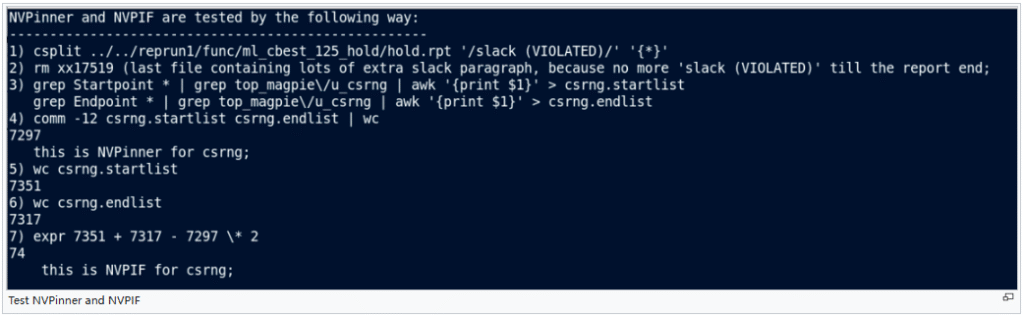
Just follow the described steps, swap ‘csrng’ by your intended block name, you’ll get NVPinner and NVPIF results. Compare the data with the one in NVP_vs_hier file, per block NVP data could be verified without any problem. In addition, upper panel chart should be visually checked against our data file. Under run/01_sta directory, there is a map file ‘sta2htm.hiermap’ that maps long hierarchical names into shorthand. Among various blocks, ‘TOP’ is a very special one. If a source or destination of a path does not fall into any of blocks defined in ‘sta2htm.hiermap’, it belongs to ‘TOP’. Testing of NVPinner and NVPIF for ‘TOP’ is a little complicated than other known block. We bundled our testing idea into Python script – get_top_nvp.py, which makes our life a whole lot easier. Just run the program, and we’ll have the result, ready for checking against data file – NVP_vs_hier.
Testing of WNS hierarchical data is also bundled into Python script – get_wns_per_block.py and get_top_wns.py. Just run the program, and we should have the results ready for comparison with data file – WNS_vs_hier. Lower panel chart must be visually checked against our data file.
Next, let’s look at version comparison view testing:
Data files dumped for comparison view are at $STA_RUN/.hier/$sta_mode/$sta_corner/$sta_check, the file ‘HierNVP’ and ‘HierWNS’. We use the following commands to capture the data from the reports:

Just swap the related report file, and run the commands, you’ll get the desired results, which are ready for comparison with ‘HierNVP’ and ‘HierWNS’. Data shall also be verified against ‘compare’ link web page tables and chart.
Adding block view features to STA2HTM:
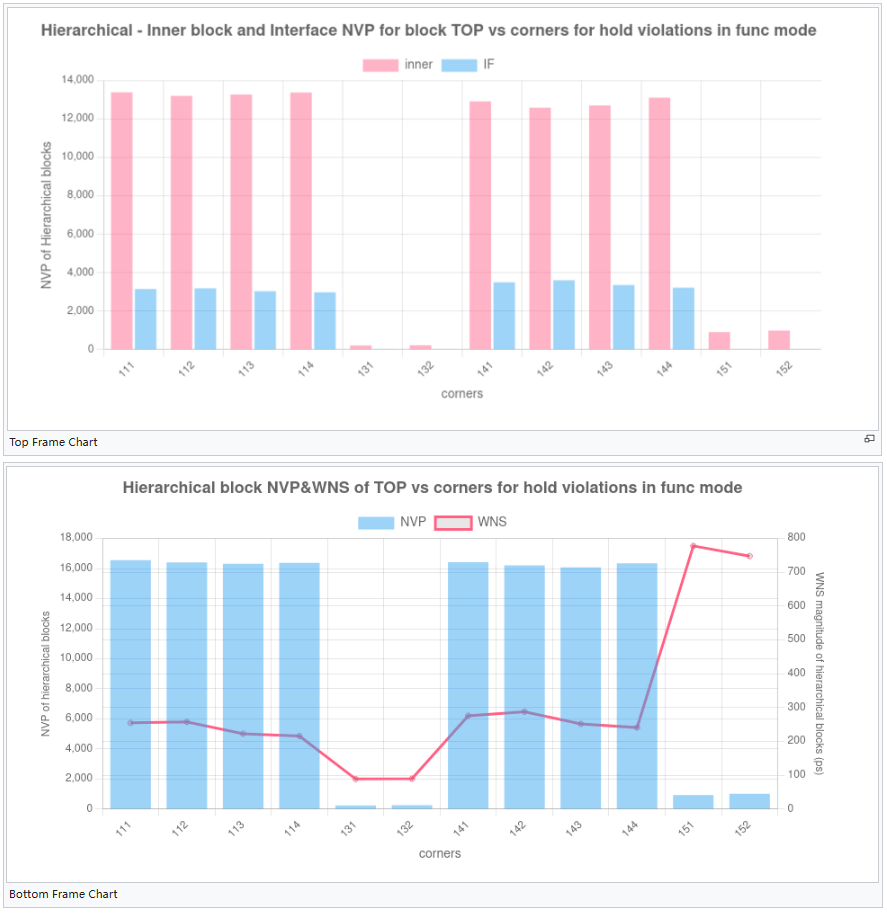
We already have hierarchical view of STA2HTM. In this view, NVP/WNS are plotted versus blocks at each corner. Now we developed block view. In this view, NVP/WNS are plotted versus each corner for each block. Here’s all new top page:
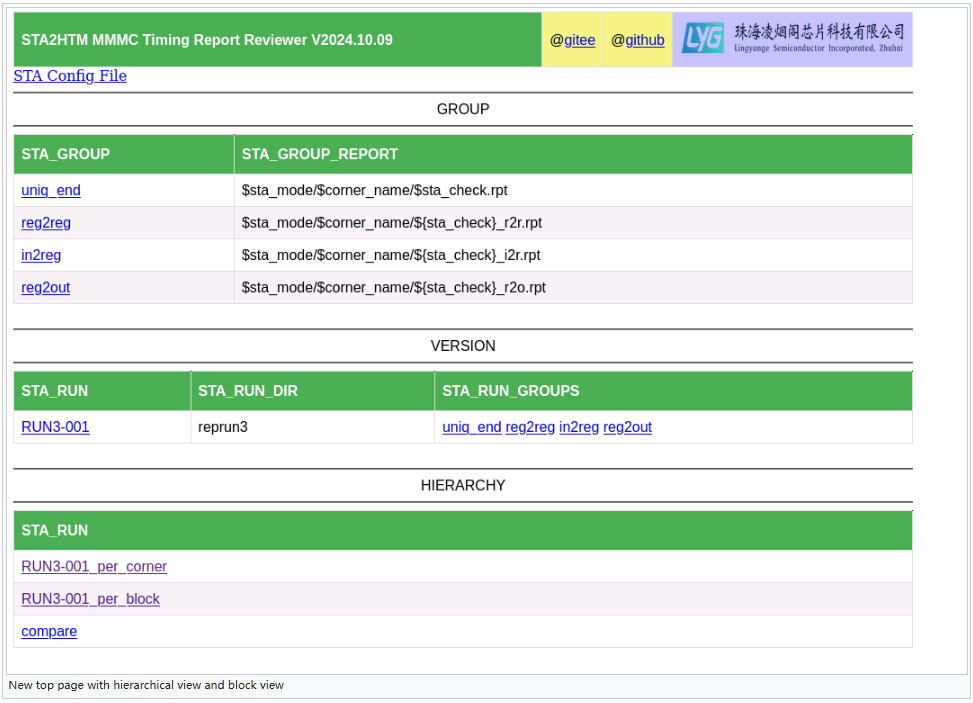
Under HIERARCHY section, RUN3-001_per_corner links hierarchical view and RUN3-001_per_block links block view. Here’s the snapshot for block view:
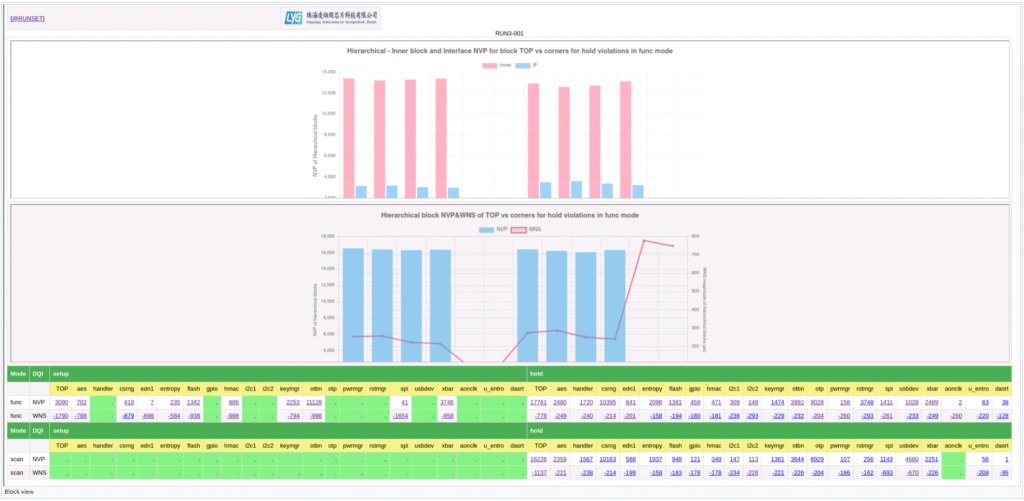
Tables are divided into different modes (func and scan for this example) and violation type (setup and hold for this example). NVP and WNS data are merged result of all corners for that block. Click NVP link will display top frame in which inner block NVP and interfacing NVP are plotted against each corner; click WNS link will display bottom frame in which total NVP and WNS are plotted against each corner. The following are complete charts:
Major Corners:
STA2HTM package is capable of list Major Corners. However, there are two methodologies – Albert’s version of Major Corner and Shizhu’s version of Major Corner. Albert’s version of Major Corner needs no setup. Run STA2HTM flow would generate a major corner page as shown below:
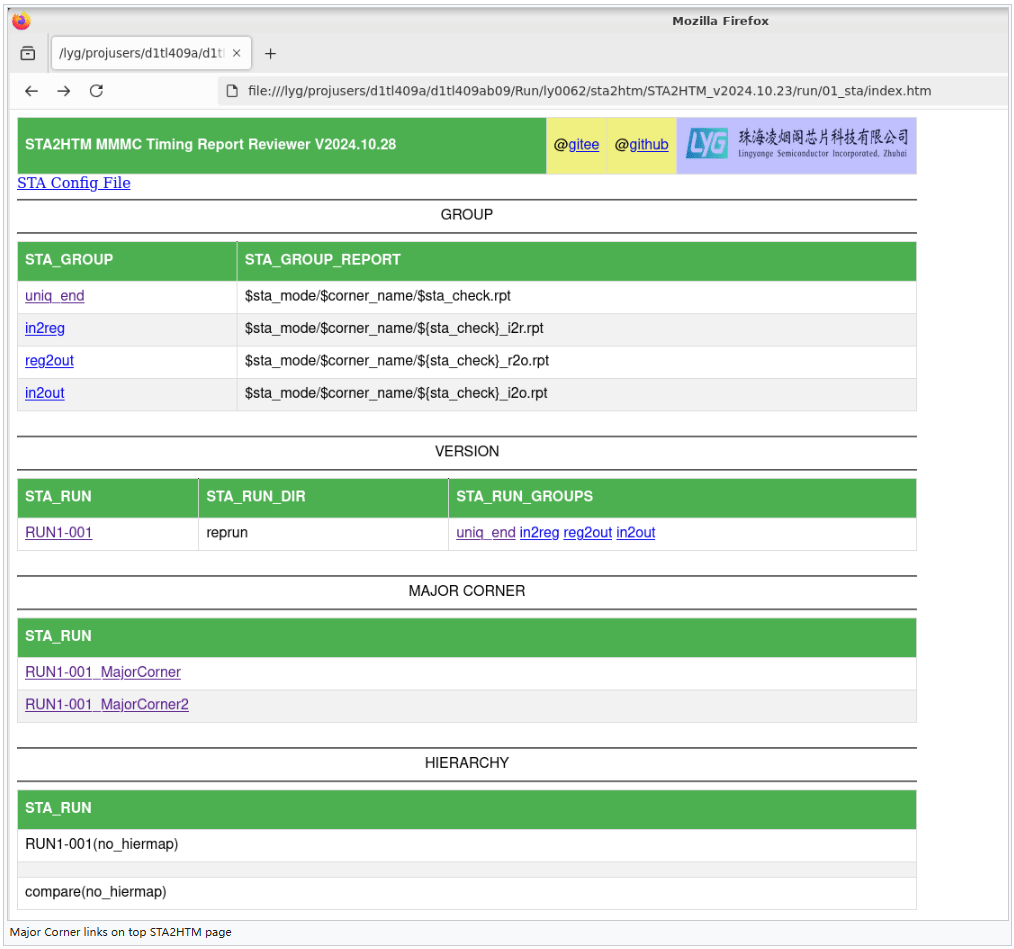
“RUN1-001_MajorCorner” is Albert’s version of Major Corner data on Run “RUN1-001”. Click on this hyperlink would bring you to the table page as shown below:
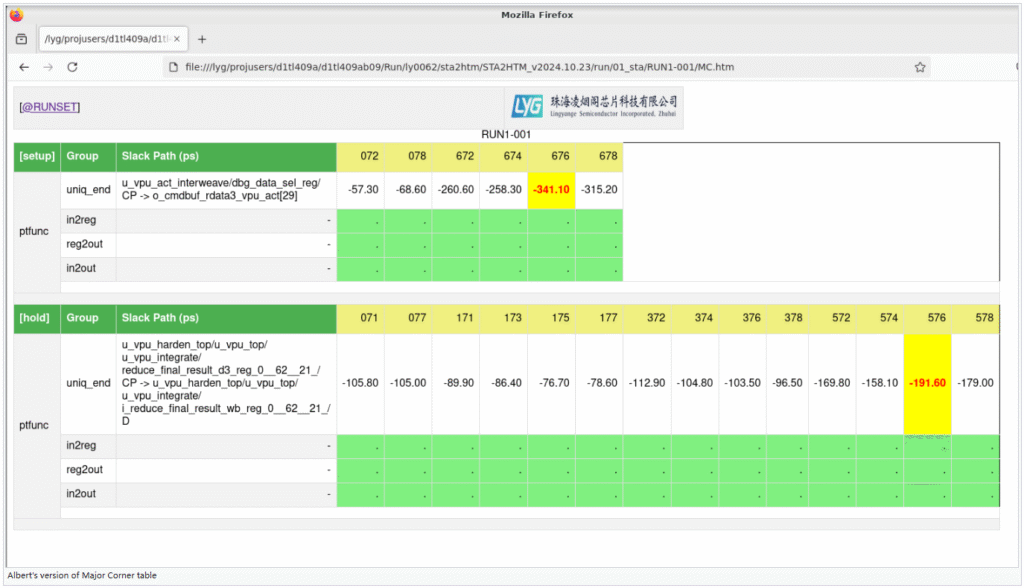
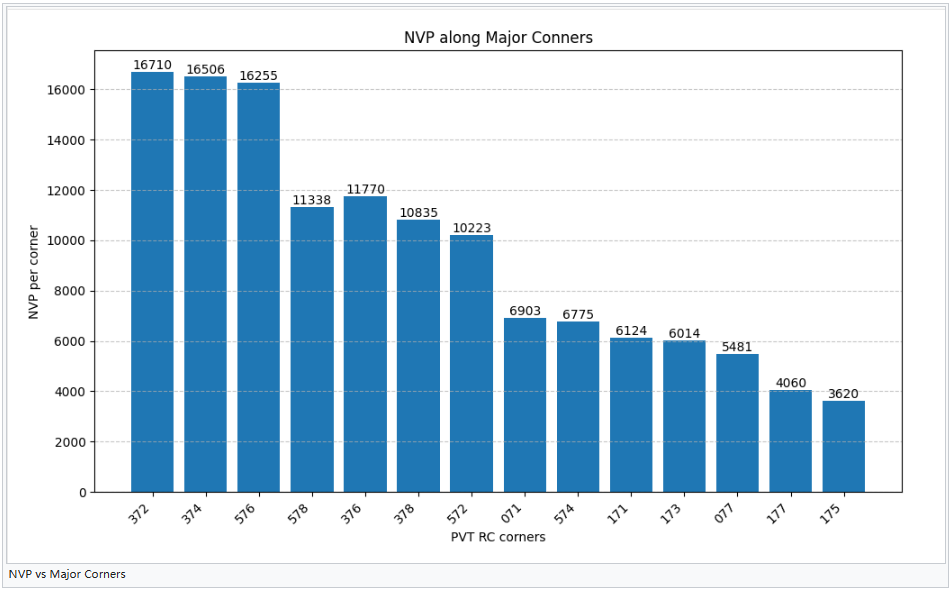
Setup and hold of function ‘ptfunc’ are separately displayed. All corner WNS data is presented. Worst WNS is highlighted by bold red font in yellow background. In general, if violation paths in worst WNS corner are fixed, they would be automatically fixed in other corners. This is the main Major Corner idea. Albert’s version of Major Corner is straightforward, holds true for most of the cases. However, there is exception where worst WNS corner violation’s fix doesn’t guarantee all other corners’ violations be automatically fixed. This came out Shizhu’s version of Major Corner. For a detailed description of Shizhu’s version of Major Corner, please refer to Major Corner. Its methodology is like this: at certain corner, to fix violation path, you need to insert mindelay buffers. Different corner require different mindelay buffer. Now if under certain corner, it’s mindelay buffer is largest among the all, then if violation in this corner is fixed, the violation on the rest of corners would be automatically fixed. This worst corner is so called Major Corner. And this is unique Major Corner. Sometimes, several corners share the same largest buffer, then Major Corner is not unique. In practical, we categorize most NVP corner as unique Major Corner, and strip violation paths from other corners, which makes our Major Corner unique.
To get Shizhu’s version of Major Corner need several setup steps:
1) Manually link *summary report to proper directory at each corner; For example, link ptfunc_tt_0p75v_typical_25c_hold/rpt/report_timing.all.min.rpt.summary to run/$REPORTDIR/ptfunc/tt_0p75v_typical_25c_hold. Note: *summary files under all corners must be linked properly.
2) Prepare ‘indelay.txt’ like shown below:
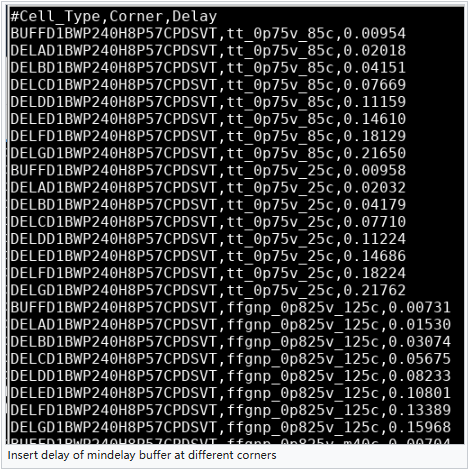
Mindelay can be read from liberty delay table, 1st row and 2nd column. All mindelay buffers must be listed and all corners’ mindelay must be listed. If this file is not existed, Shizhu’s version of Major Corner flow would be skipped.
Once above two steps are set up, you could run STA2HTM flow and get ‘RUN1-001_Major_Corner2’ hyperlink on top page. Click this hyperlink would show you the following graph:
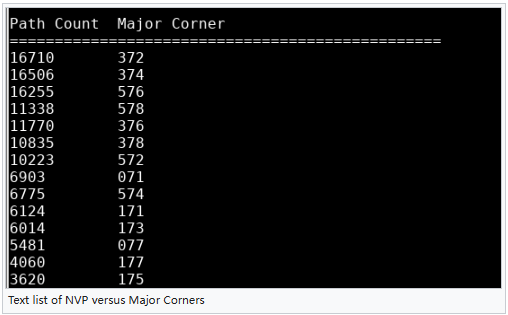
In addition, the program would list the following table:
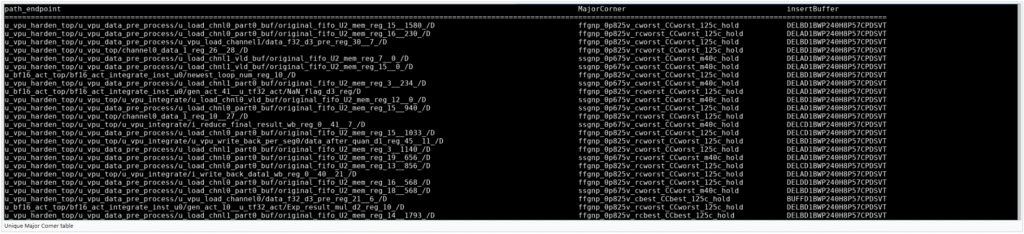
The program also outputs ‘MajorCornerOnly.txt’ which lists violation path, fix mindelay buffer at unique Major Corner:
For not unique Major Corner, similar table outputted to ‘MajorCorner.txt’. Since it’s similar to above table, image won’t be shown here.
History of releases:
v2021.02 – Start with Albert’s package in Github, modified whenever necessary.
v2023.11.15 – Added hierarchical view and compare view features to the package.
v2023.11.28 – Bug fixes;
v2023.12.4 – Improvements whenever necessary; added test directory to the package;
v2024.01.10 – Implemented waive features; display data in ns unit is also available and optional now;
v2024.02.20 – Sped up major report processing by c++ program; Implemented incremental run;
.v2024.08.14 – Enable the program to recognize ${sta_check}_i2o.rpt;
v2024.08.16 – Enable the program to process *.gz compressed reports;
v2024.08.20 – Sped up major report processing by multithreading;
v2024.08.22 – Sped up hierarchical data processing by c++ program;
v2024.08.28 – Fixed clock and block merging bugs; Adjusted various plot charts’ sizes;
v2024.10.09 – Added block view features to STA2HTM package;
v2024.10.23 – Implemented Albert’s version of Major Corner features to STA2HTM package;
v2024.10.28 – Implemented Shizhu’s version of Major Corner features to STA2HTM package;
Video of seminars:
Here’s video website that introduces STA2HTM features.
Software copyright:
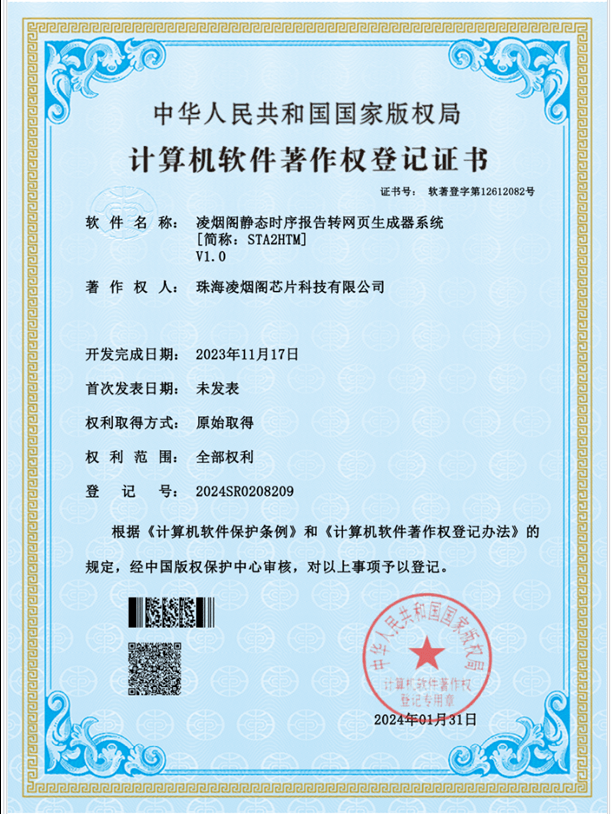
The STA2HTM V1.0 software copyright is officially granted. The following is the image of certificate:
Conclusion:
Hierarchy and version comparison are two new features upgraded to STA2HTM package. New features are tested extensively to ensure functional. For any questions, comments, suggestions or bug reports, please contact LYG CAD.